
-
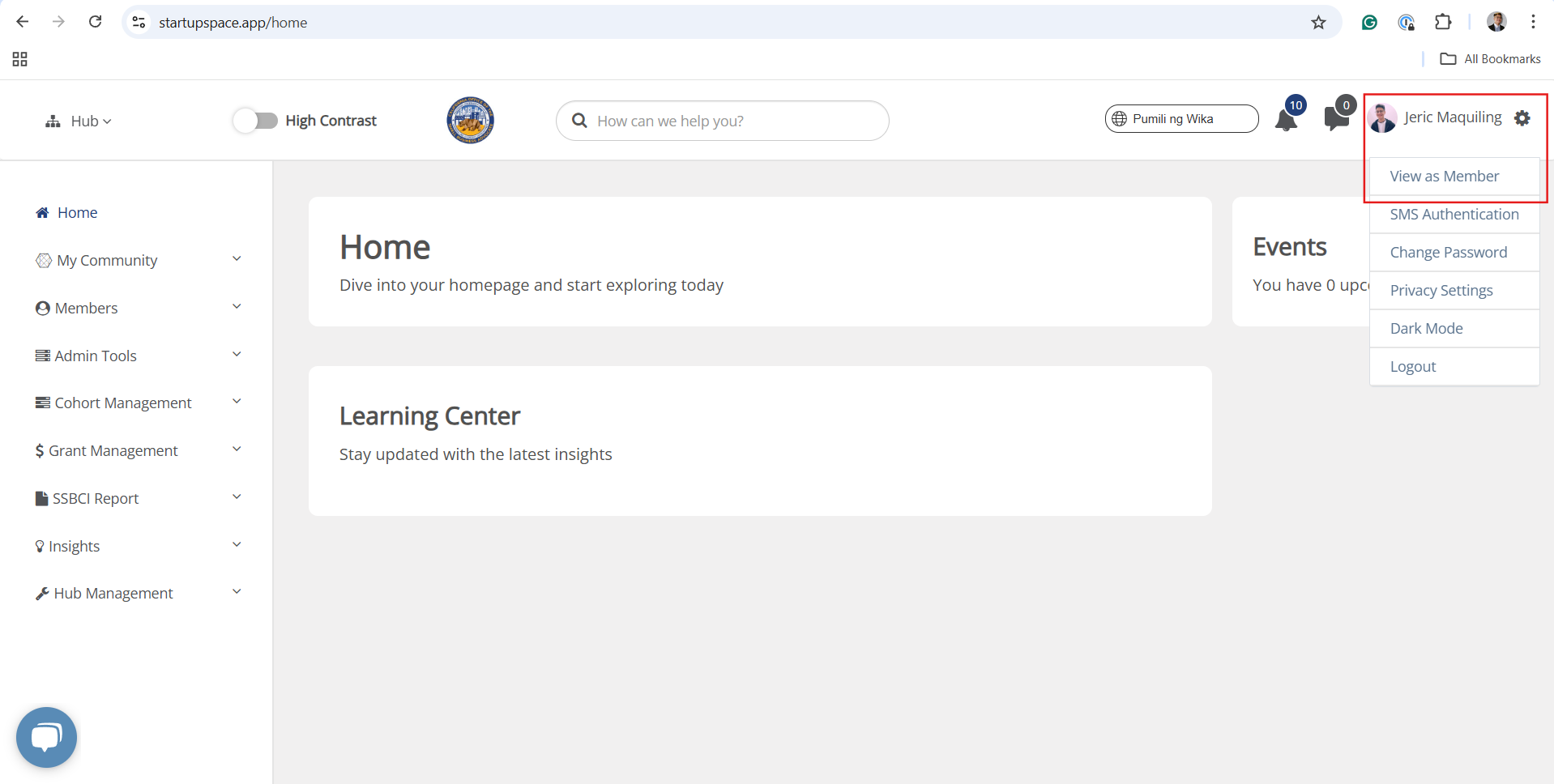
Log in to your Hub and ensure you're in Moderator View. In the upper right-hand corner, click the gear icon and switch to View as Moderator if needed.
-
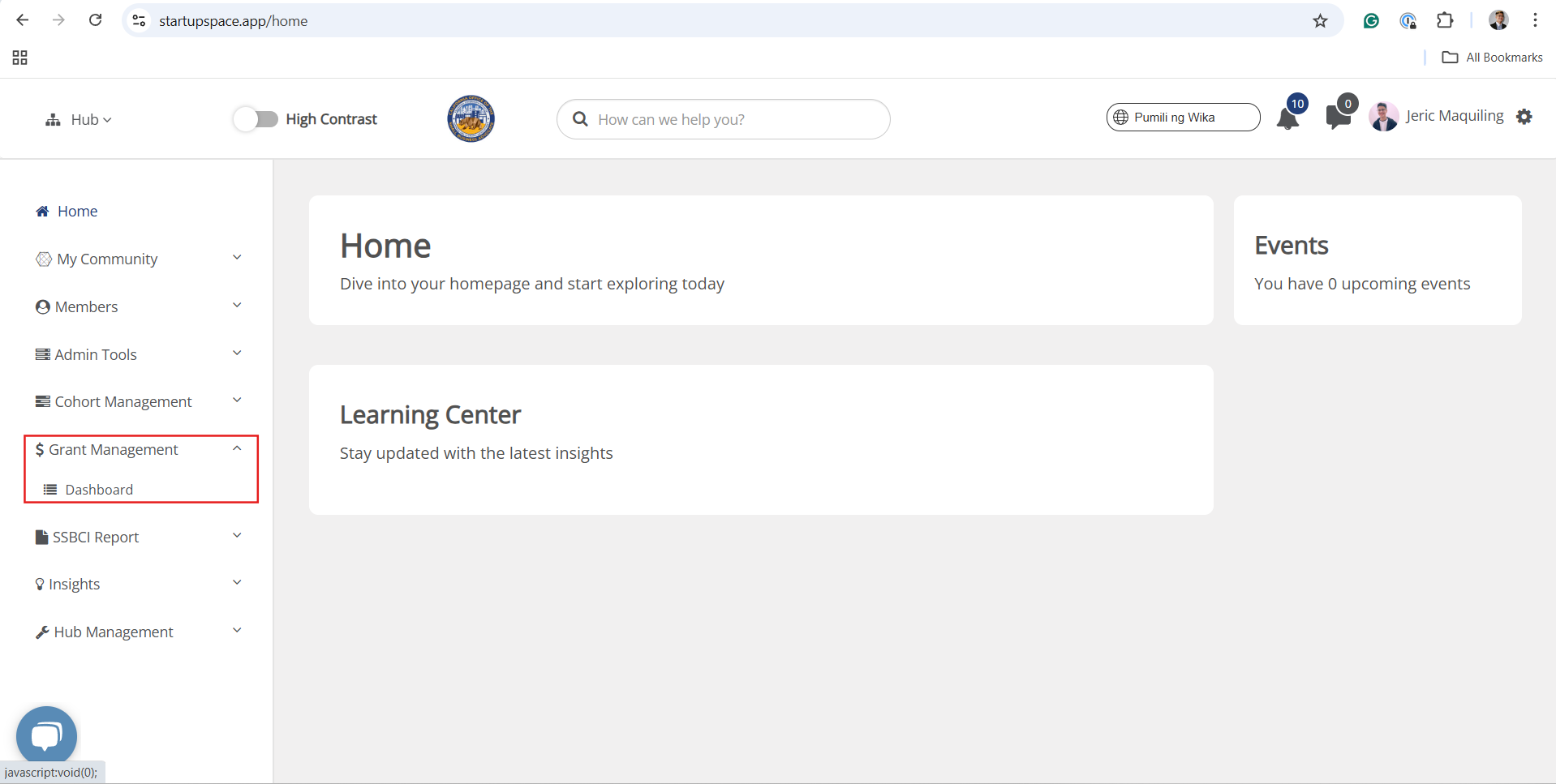
On the left-hand side, click Grant Management, then select Dashboard.
-
If you're managing multiple programs, make sure you're viewing the TAP section of the dashboard.

-
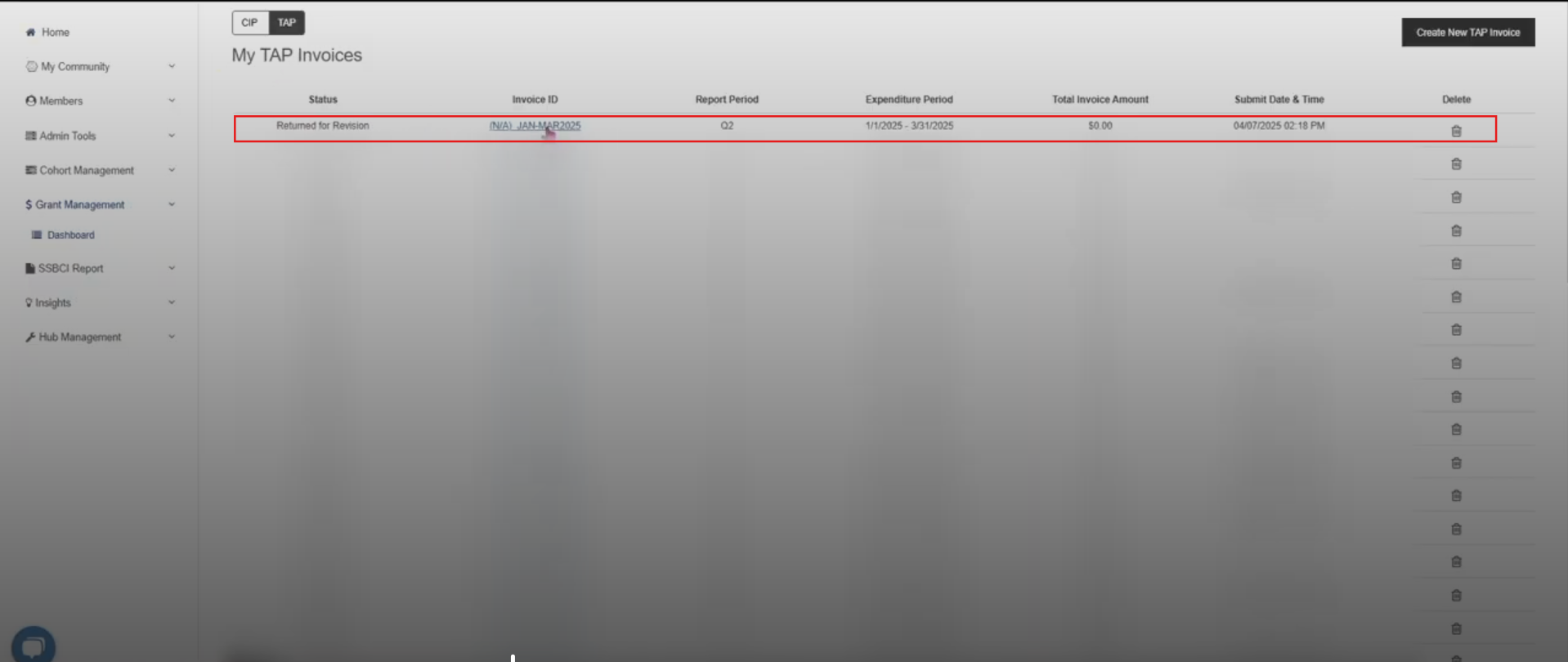
Find the invoice marked as Returned for Revision and click on the Invoice ID to open it
-
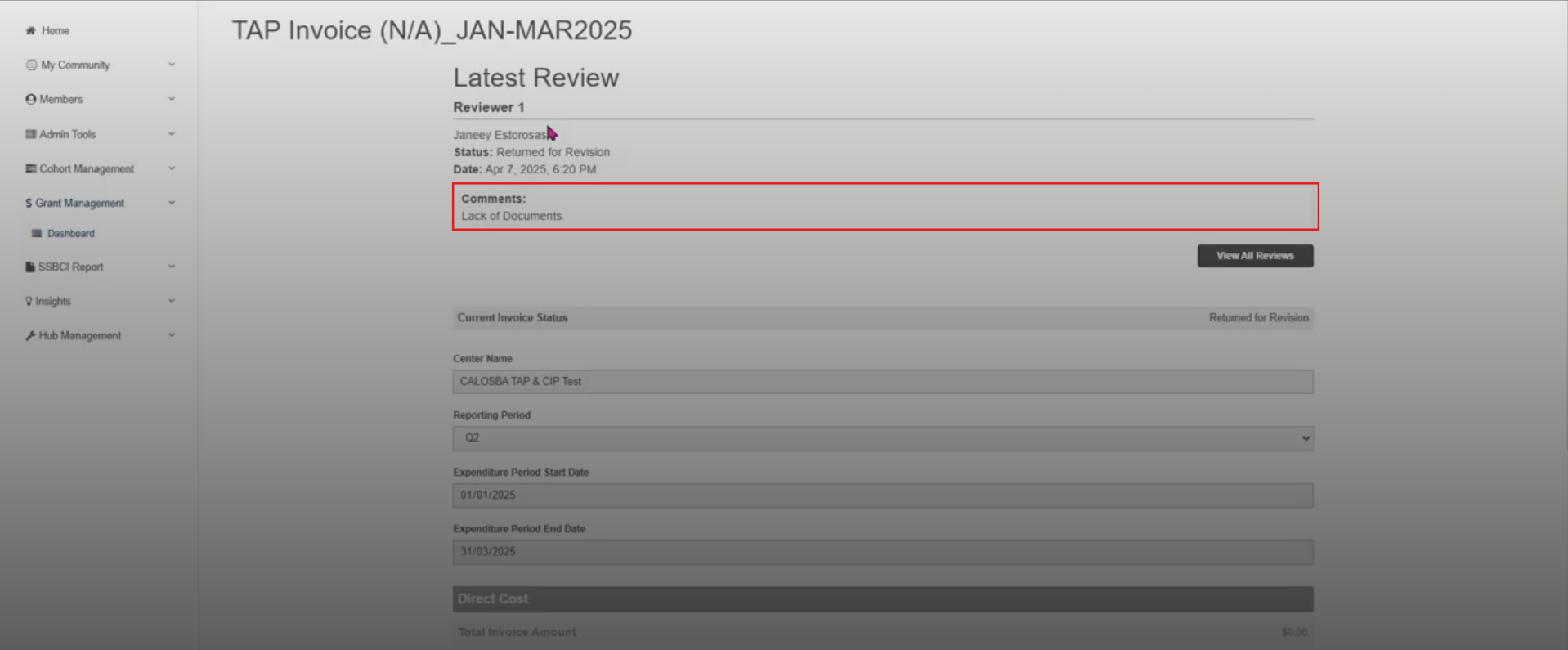
Review the comments in the Comments box carefully. This section will explain why the invoice was returned and what updates are needed—such as missing metrics or required documentation.
-
Take the required action(s):
-
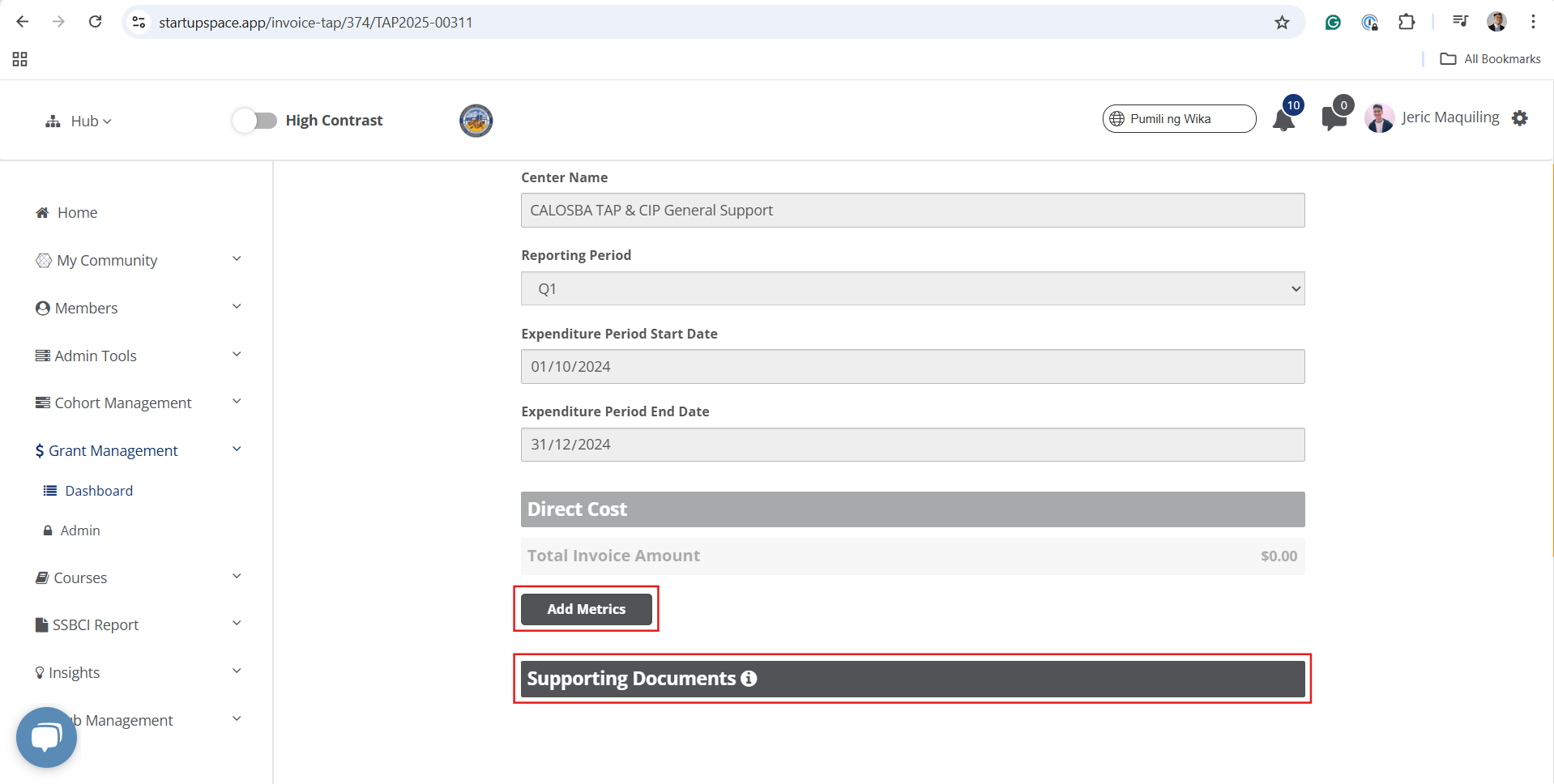
Click Verify Metrics to add or update your reported metrics.
-
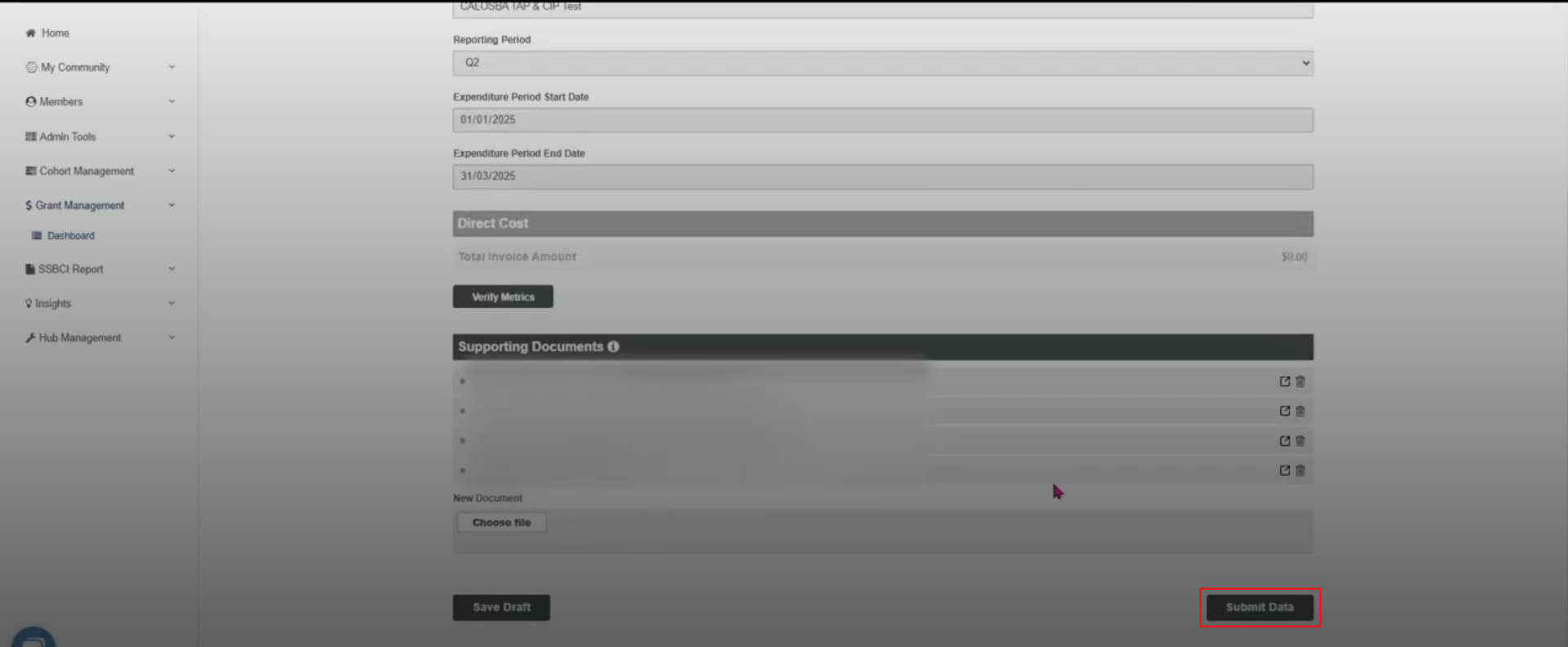
Use the Supporting Documents section to upload any required narrative reports or attachments.
-
-
Once all updates are complete, click Submit Data.
-
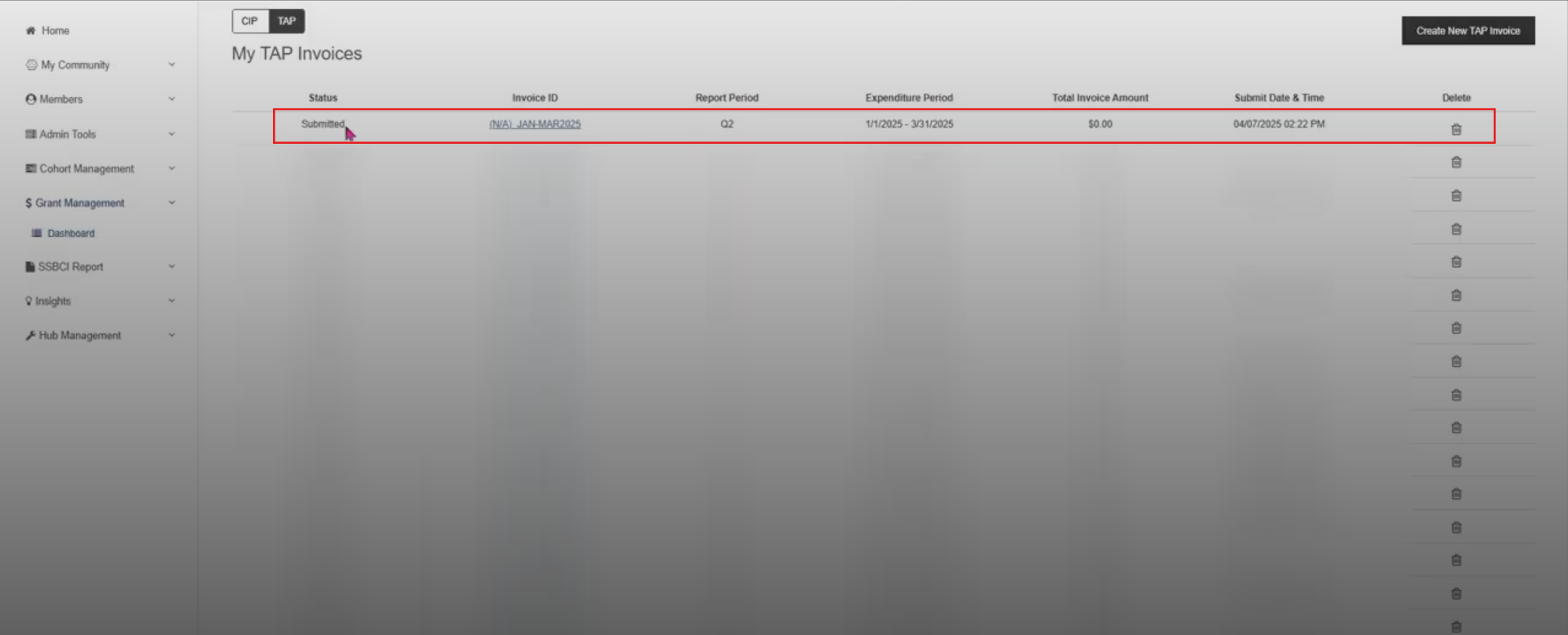
This will automatically update the status of the invoice from Returned for Revision to Submitted.
-
Watch the tutorial video here: Startup Space TAP Data Submission Instructions