
-
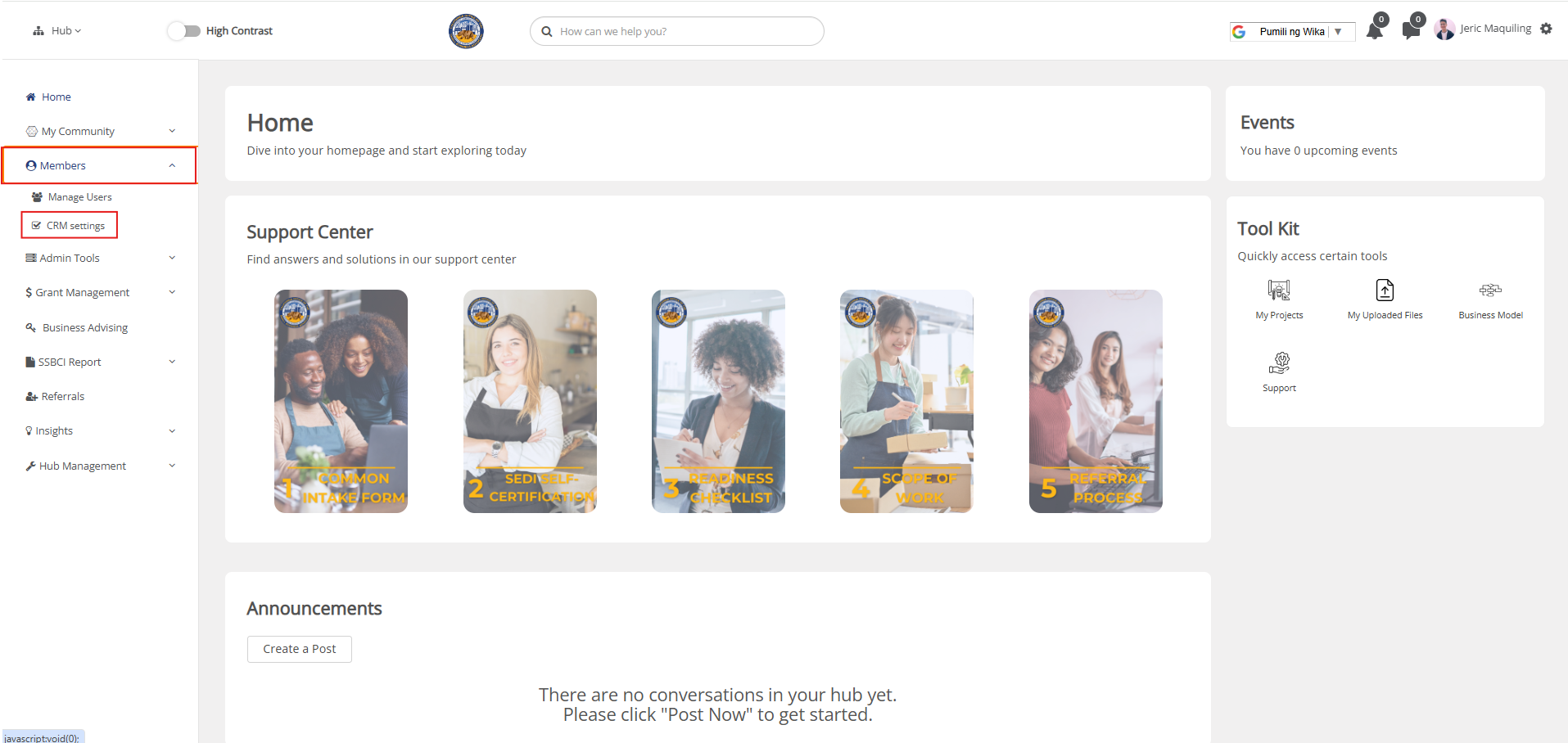
Select the Members dropdown menu and choose CRM Settings.
-
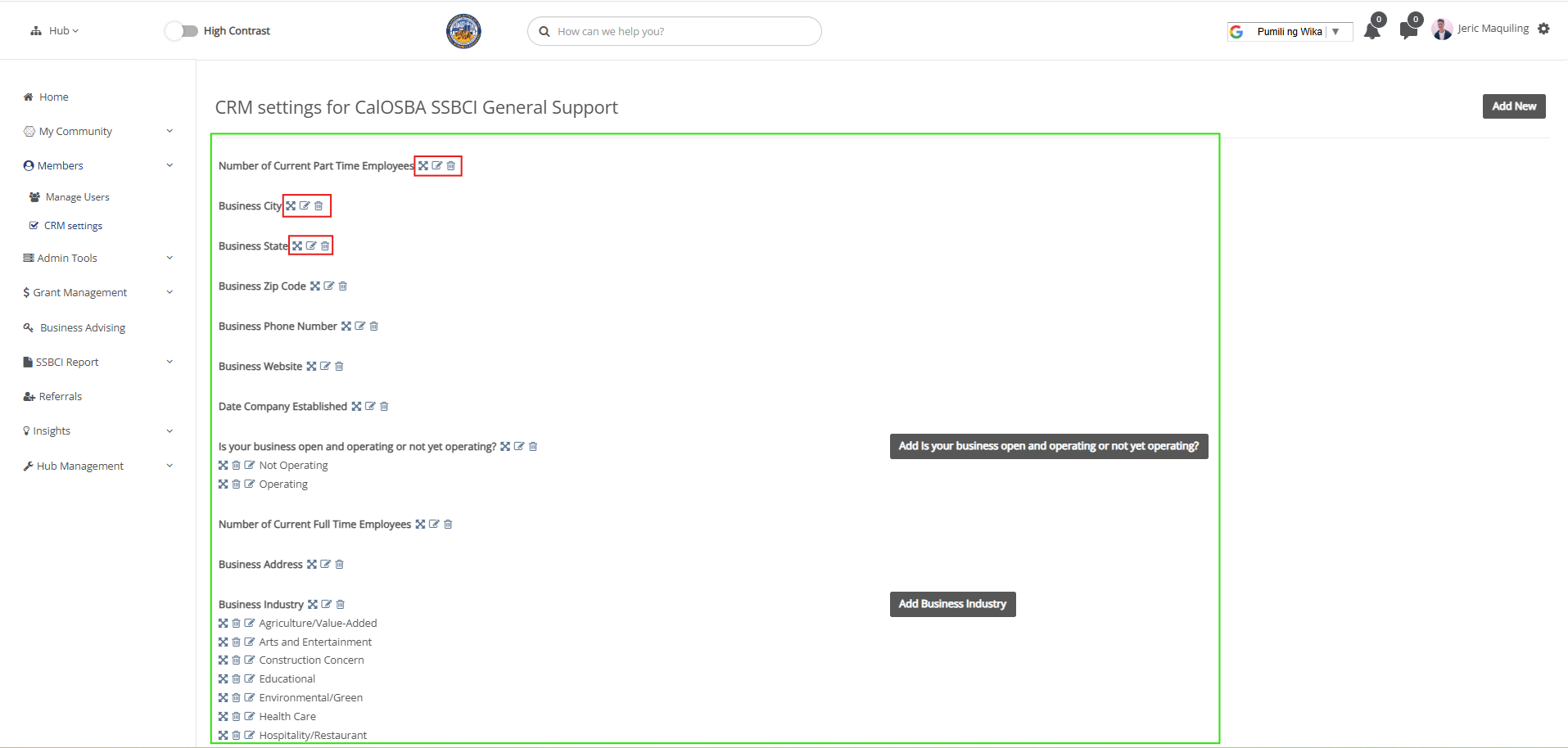
View the existing CRM fields (highlighted in green box), which can be moved, edited, or deleted using the icons provided (highlighted in red boxes).
-
To add a new field:
-
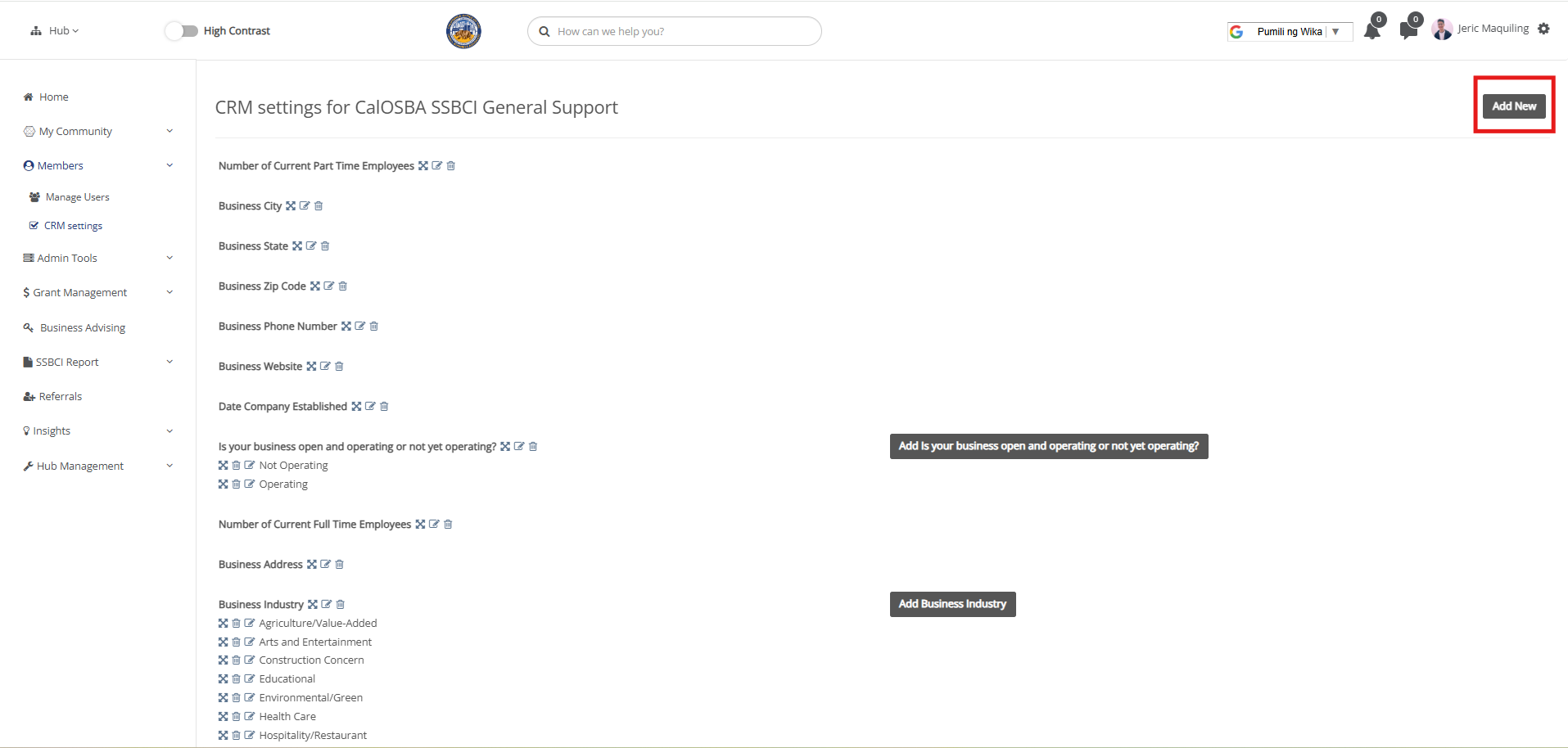
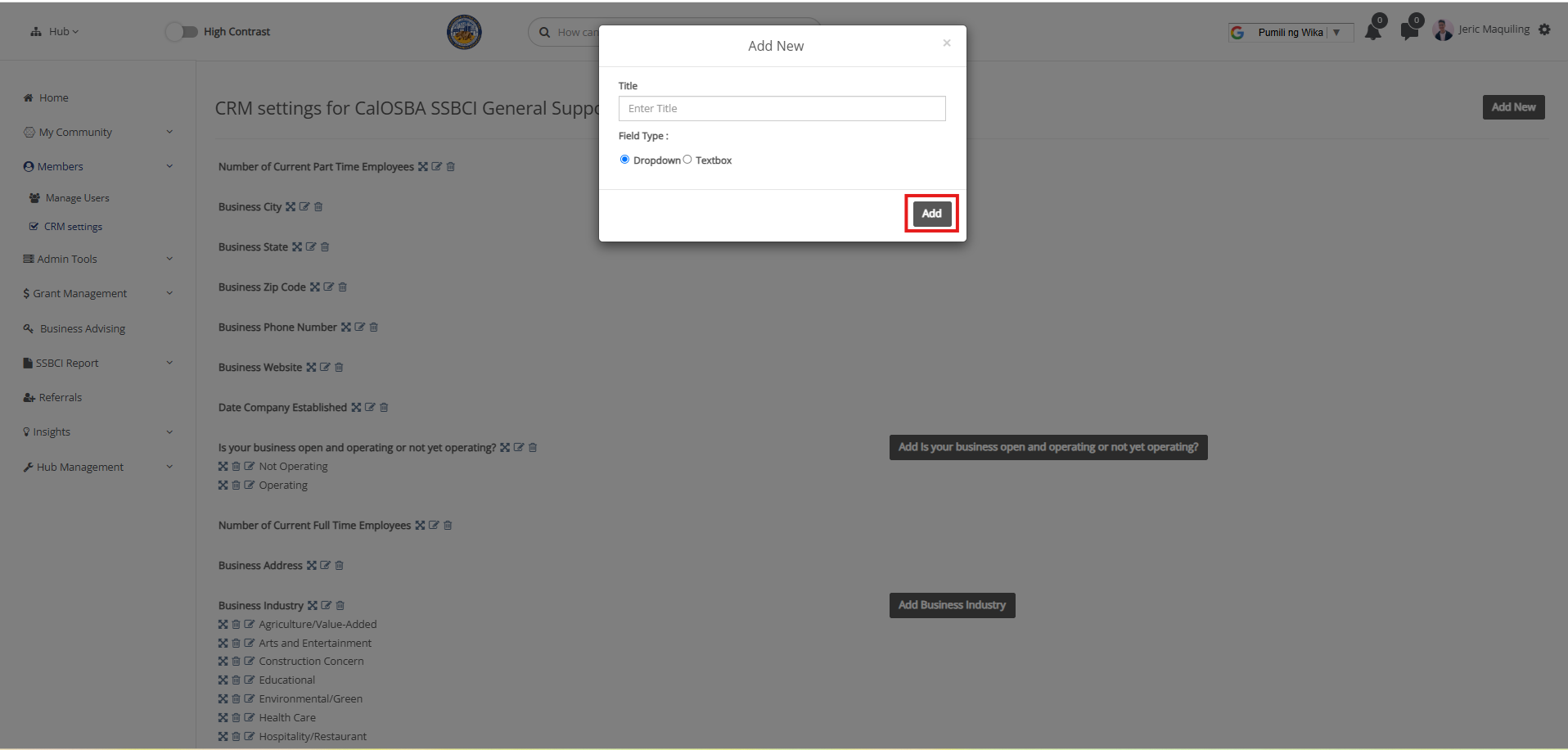
Click Add New.
-
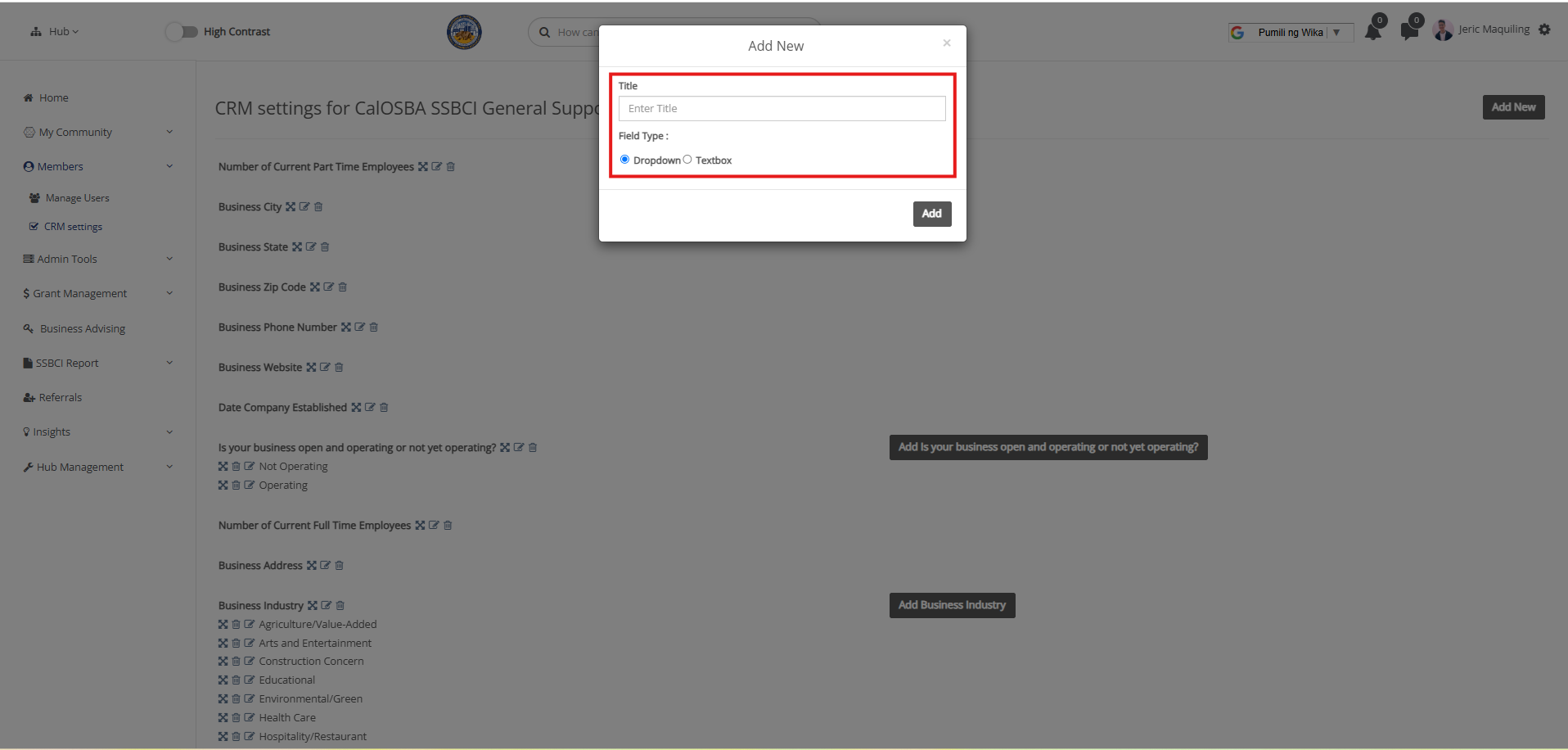
Enter a title and select whether it will be a dropdown or a textbox field.
-
Click Add.
-
-
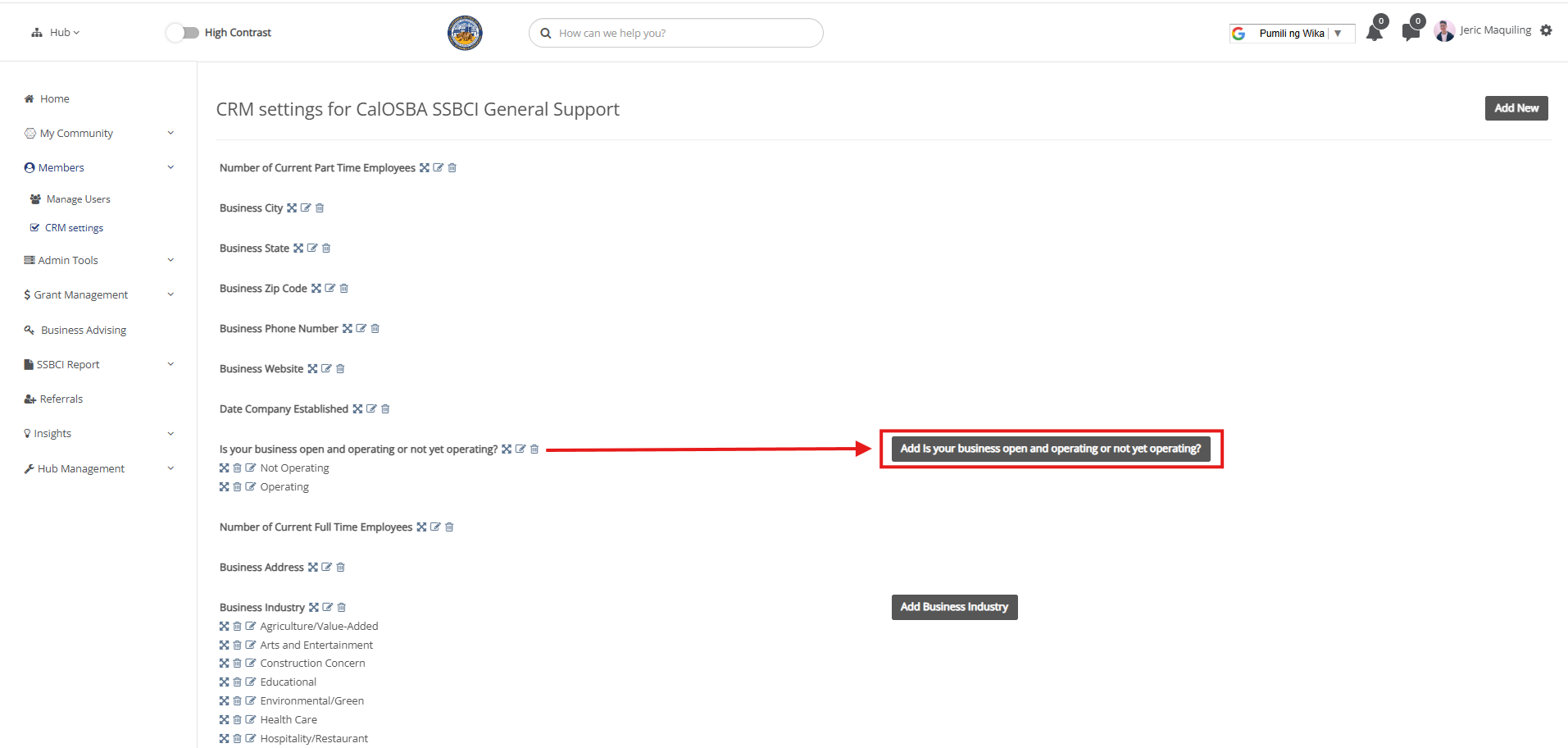
For dropdown CRM fields, click the Add button next to the field to add options.
-
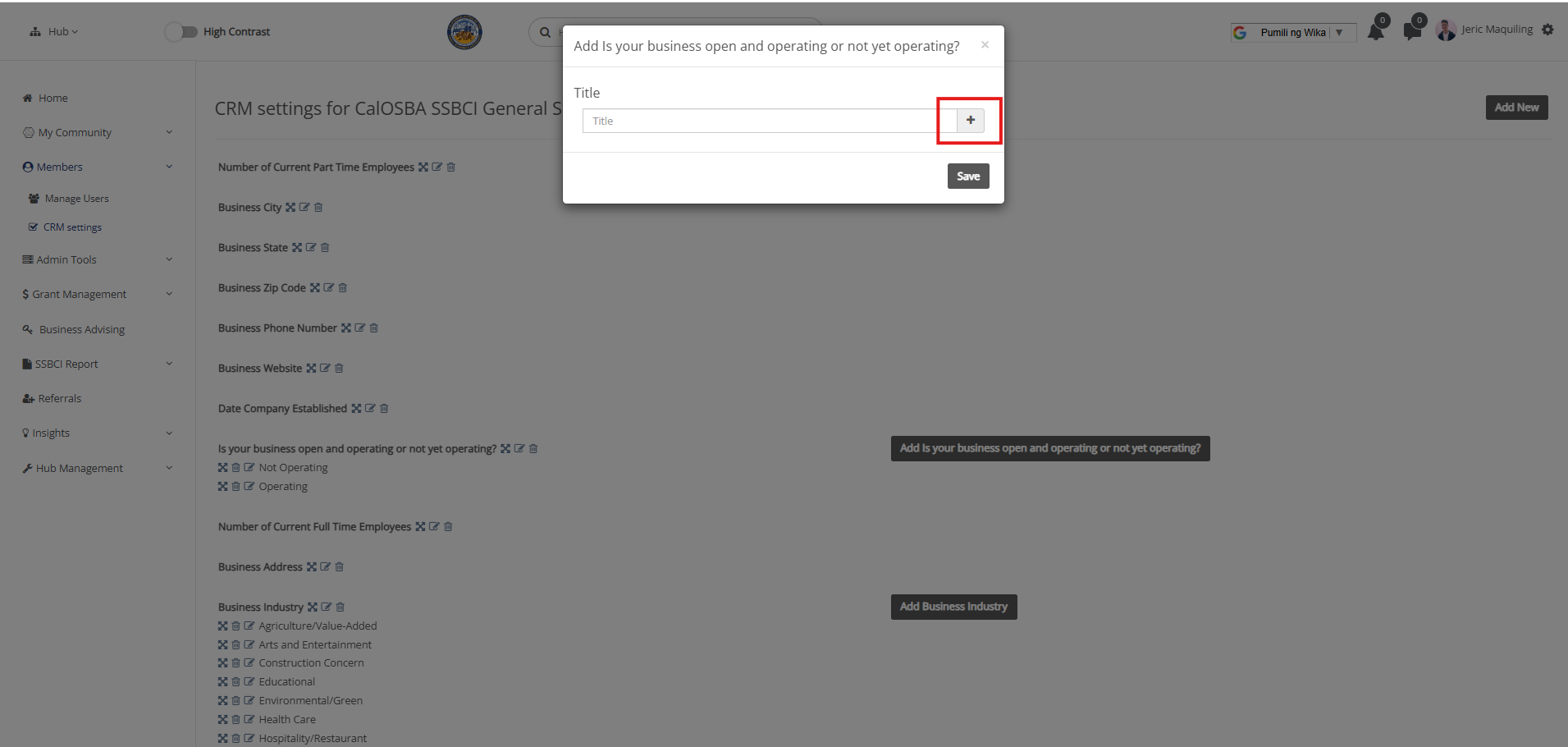
Use the plus (+) button to add multiple options.
-
After entering all options, click Save.

-
-
To map survey data to the CRM:
-
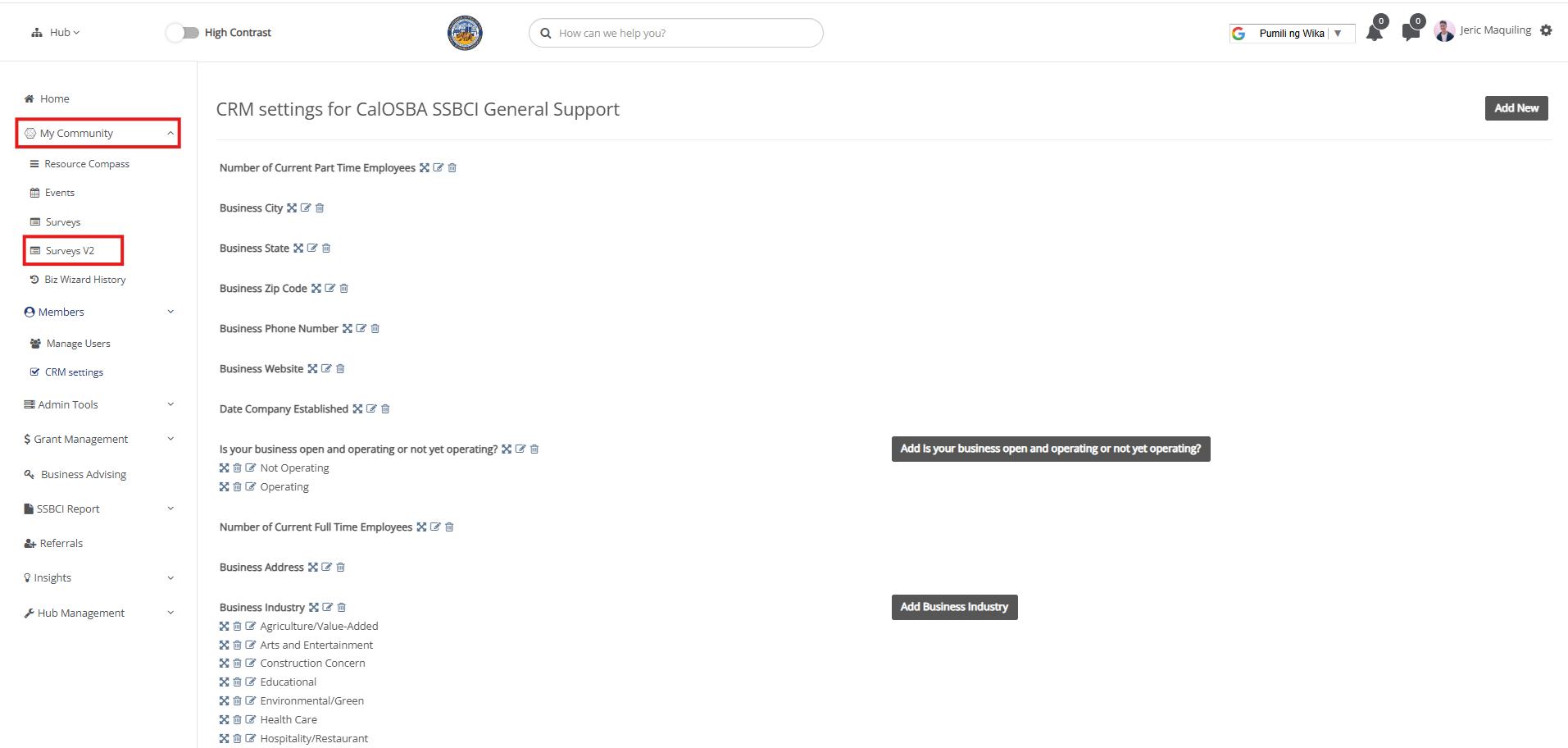
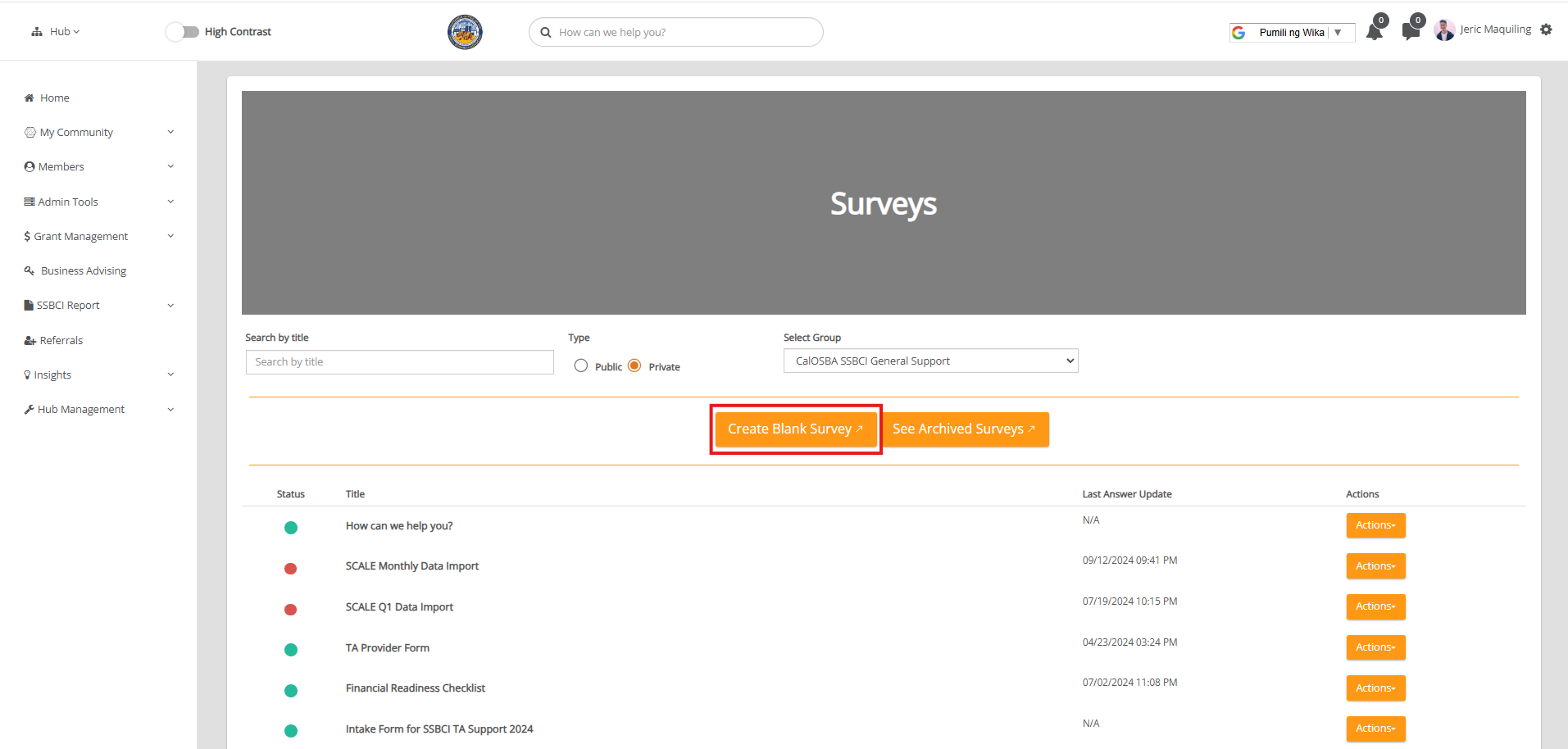
Click the My Community dropdown and select Surveys V2.
-
Click Create Blank Survey to add a new form, then add a question.
-
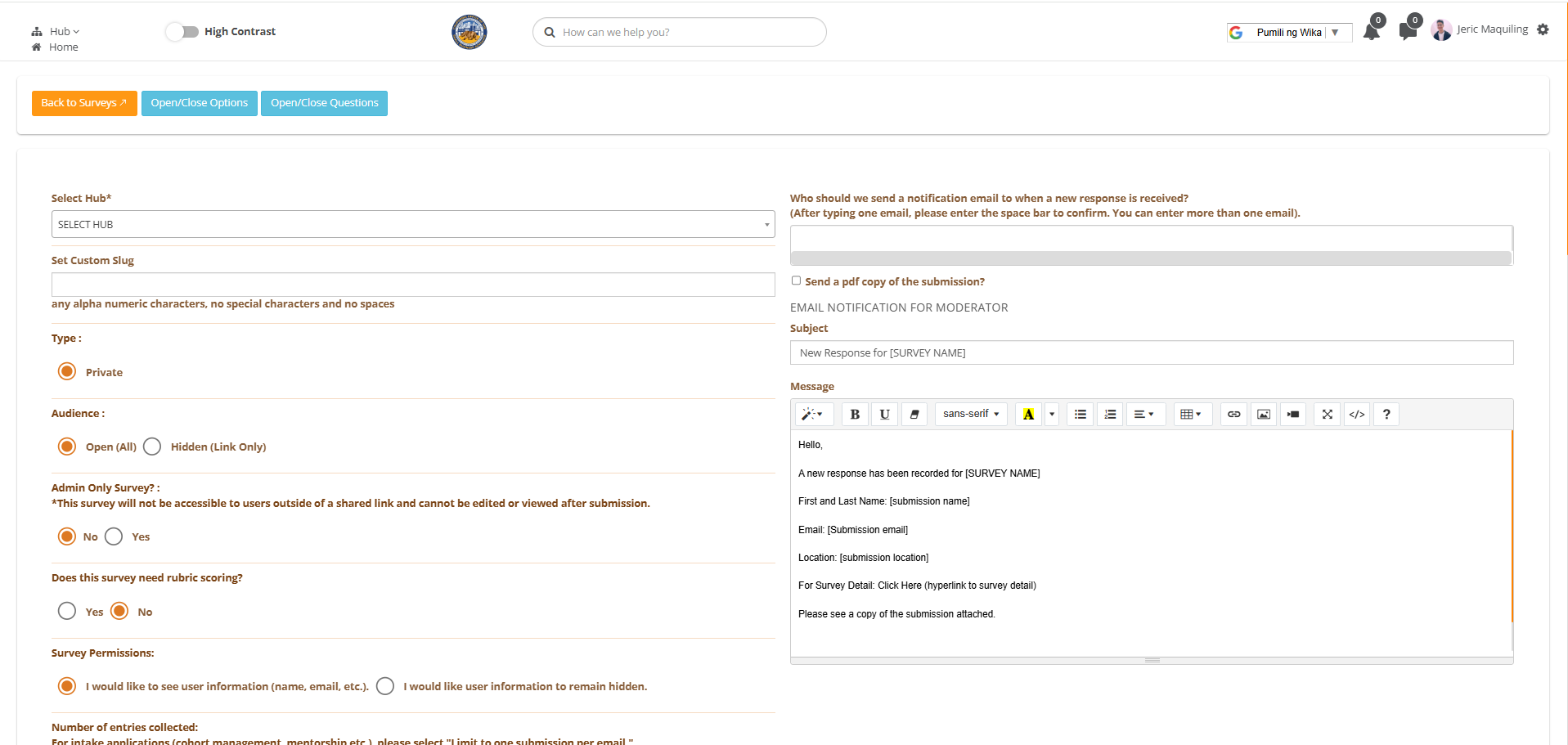
Go through the necessary fields as you would normally do in creating the survey.
-
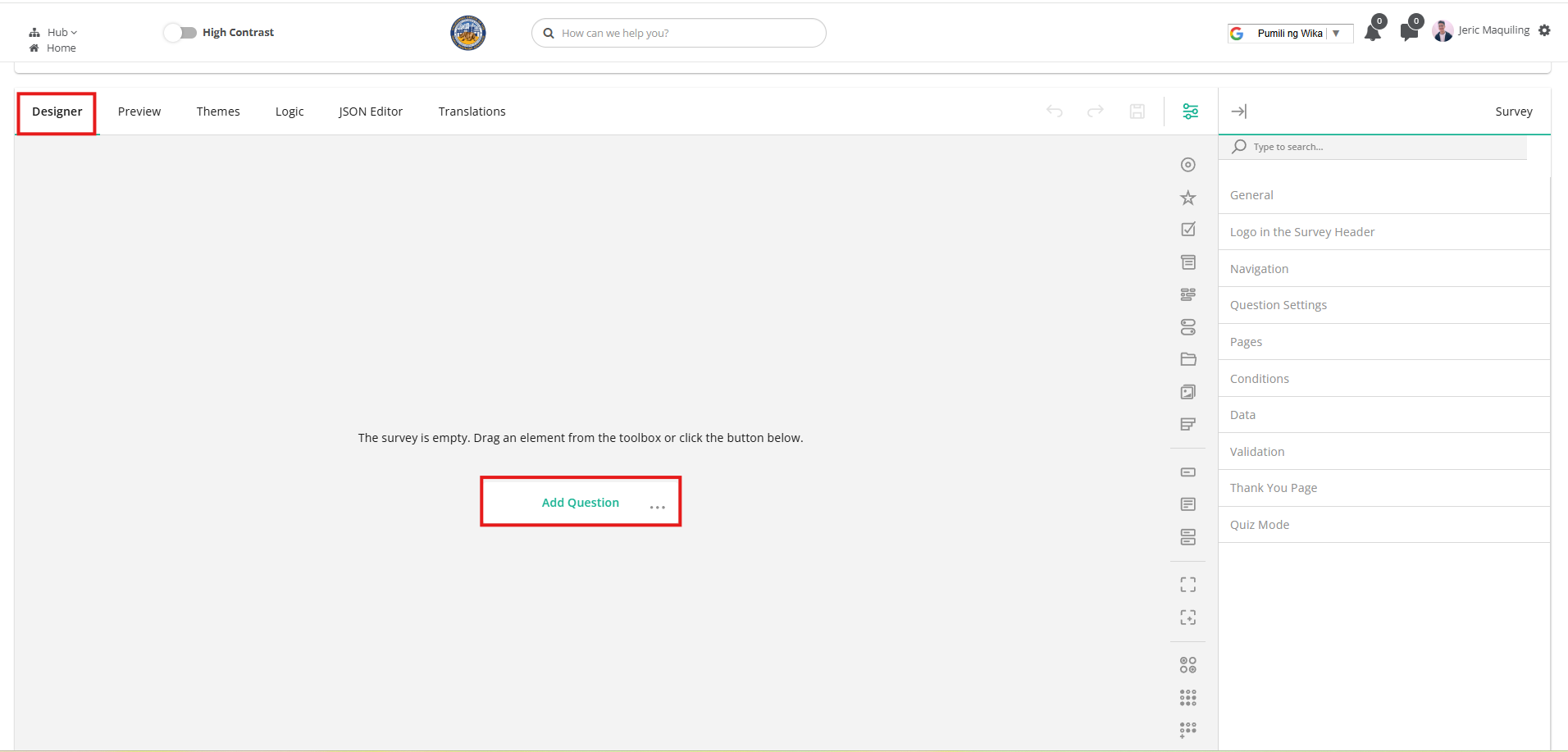
Scroll down to the Designer section and Add Question.
-
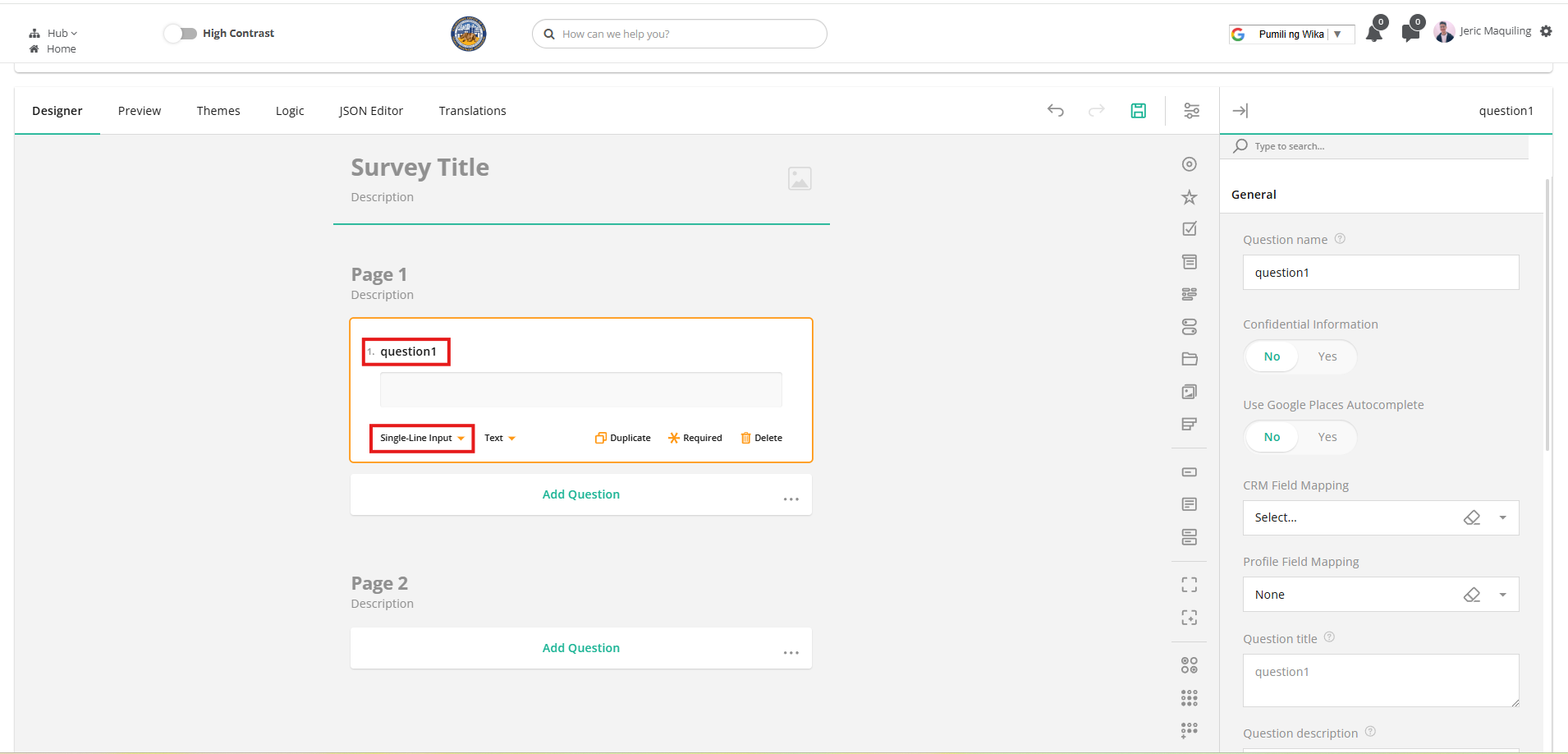
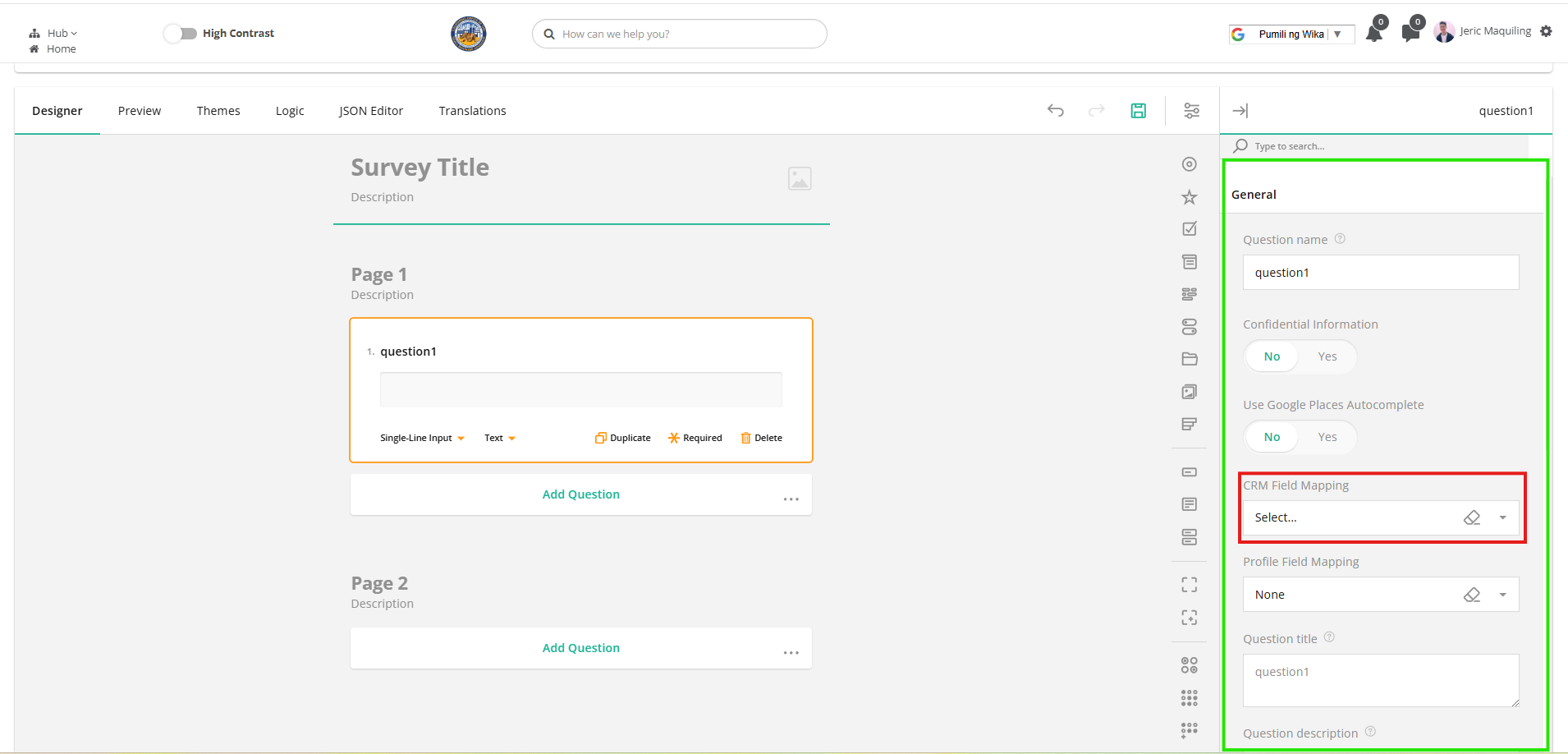
Type in your question and choose single line input for textbox CRM fields.
-
Go to the General tab (highlighted in green box), find the CRM Field Mapping dropdown, and choose the appropriate CRM field to map.
-
-
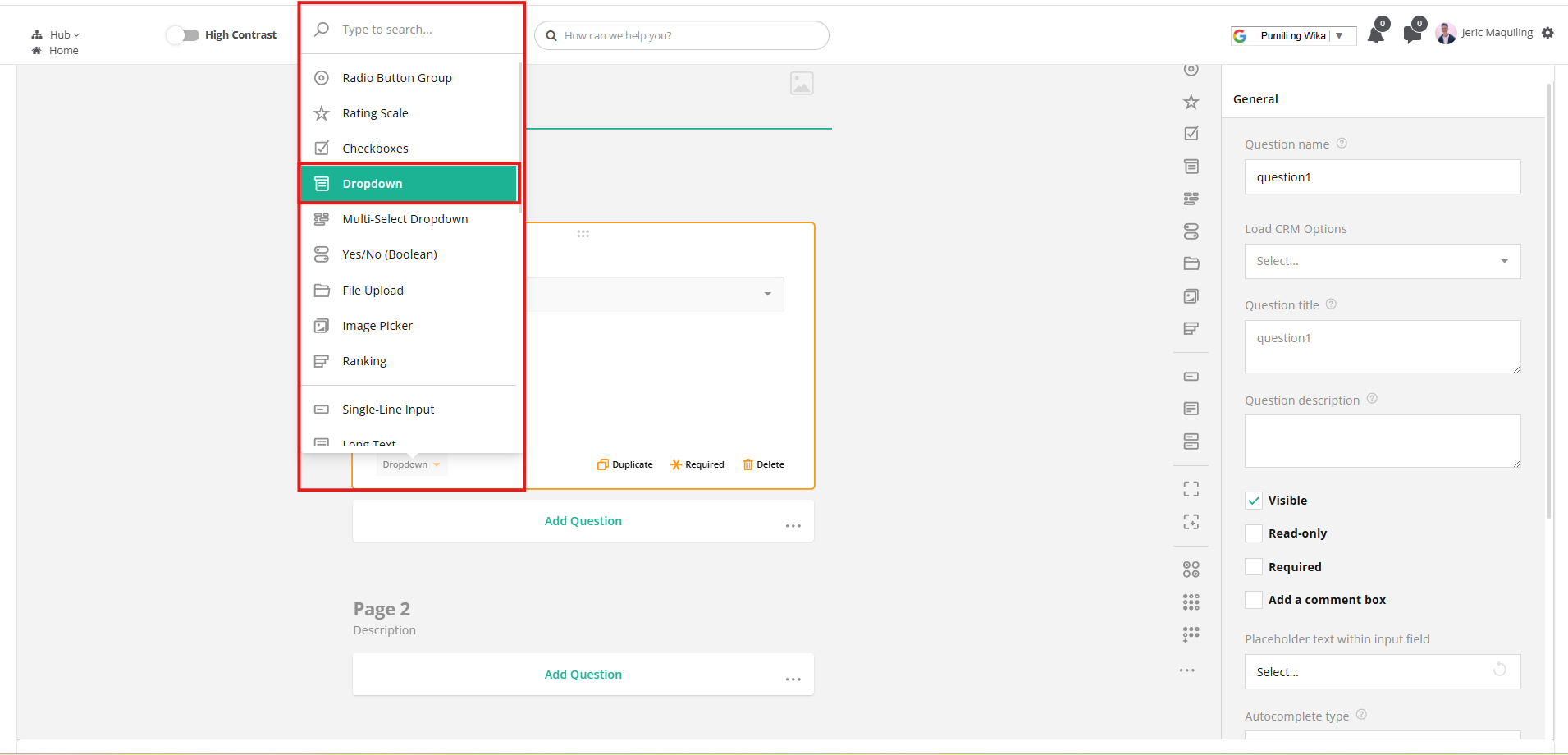
For dropdown question, choose dropdown.
-
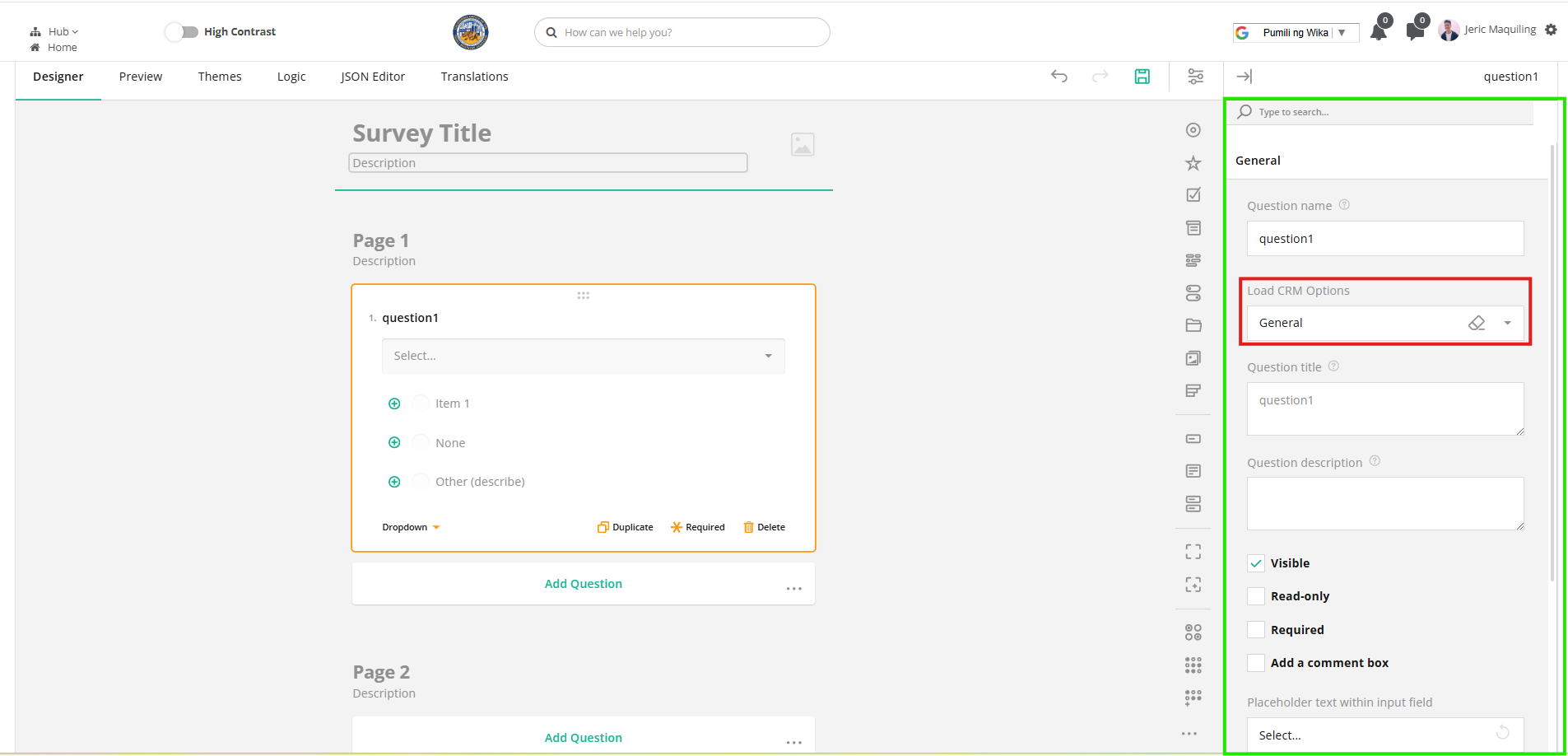
Go to the General tab, find the Load CRM Options dropdown, and select the field you'd like to map.
-
-
Watch the tutorial video here: CRM and Surveys Mapping