---
title: Reviewing Survey as Moderator
description: This guide walks you through how to review and manage surveys as a moderator, including viewing submissions, making edits, and archiving completed surveys.
---
[Skip to content](https://learn.economicimpactcatalyst.com/reviewing-survey-as-moderator#main-content)
English
Show submenu for translations

Open main navigation
Close main navigation
- English
Show submenu for translations
How can we help you?
- There are no suggestions because the search field is empty.
1. [Startup Space](https://learn.economicimpactcatalyst.com/?hsLang=en)
2. [CalOSBA SCALE Resources](https://learn.economicimpactcatalyst.com/calosba-scale-resources?hsLang=en)
3. [Forms](https://learn.economicimpactcatalyst.com/calosba-scale-resources?hsLang=en#forms)
# Reviewing Survey as Moderator
## This guide walks you through how to review and manage surveys as a moderator, including viewing submissions, making edits, and archiving completed surveys.
1. #### Navigate to the **My Community** dropdown and select **Surveys V2** to see all existing forms.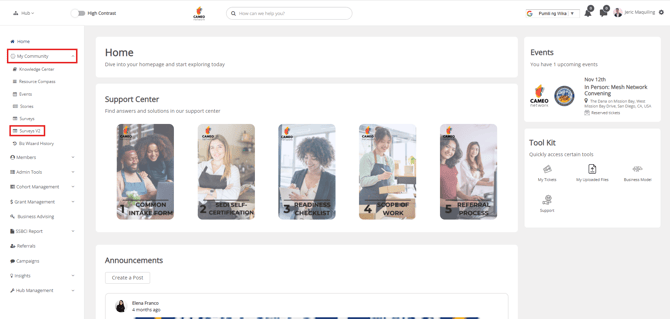
2. #### Find the survey you want to manage (in this example, we're showing the Intake Form highlighted n green) and click the **Actions dropdown** next to it to access various options: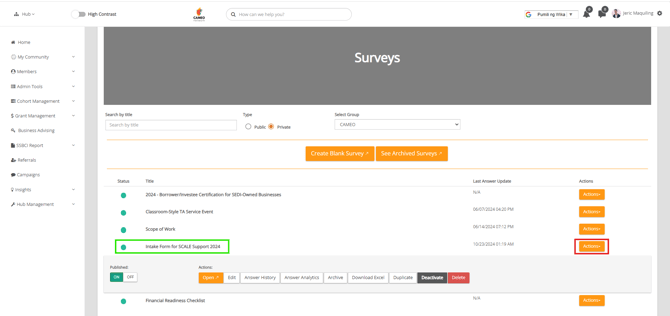
- #### **Open**: This lets you view the form as if you were filling it out.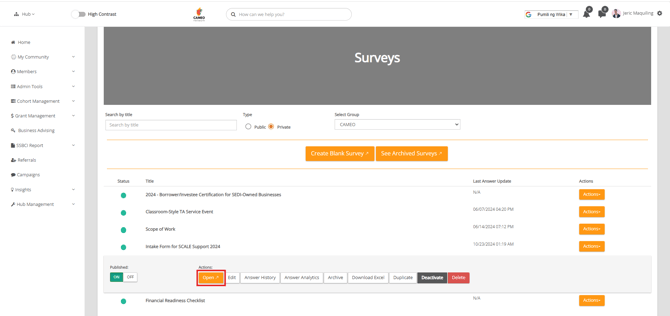
- #### **Edit**: This allows you to make updates to the form's questions or settings.
- #### **Answer History**: View and download details of submitted responses.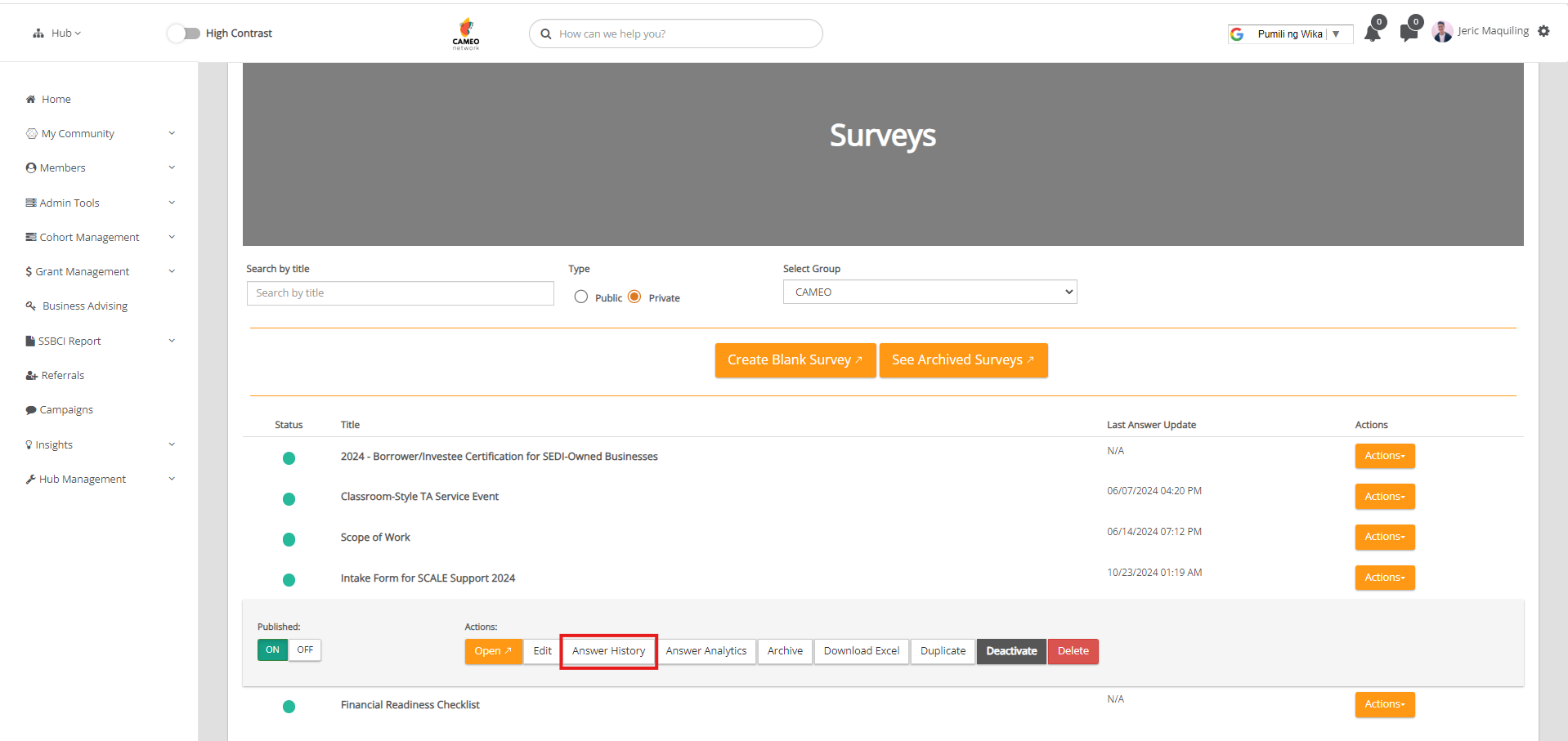
- #### **Answer Analytics**: Use this for an overview of the responses, with easy-to-read data visualizations.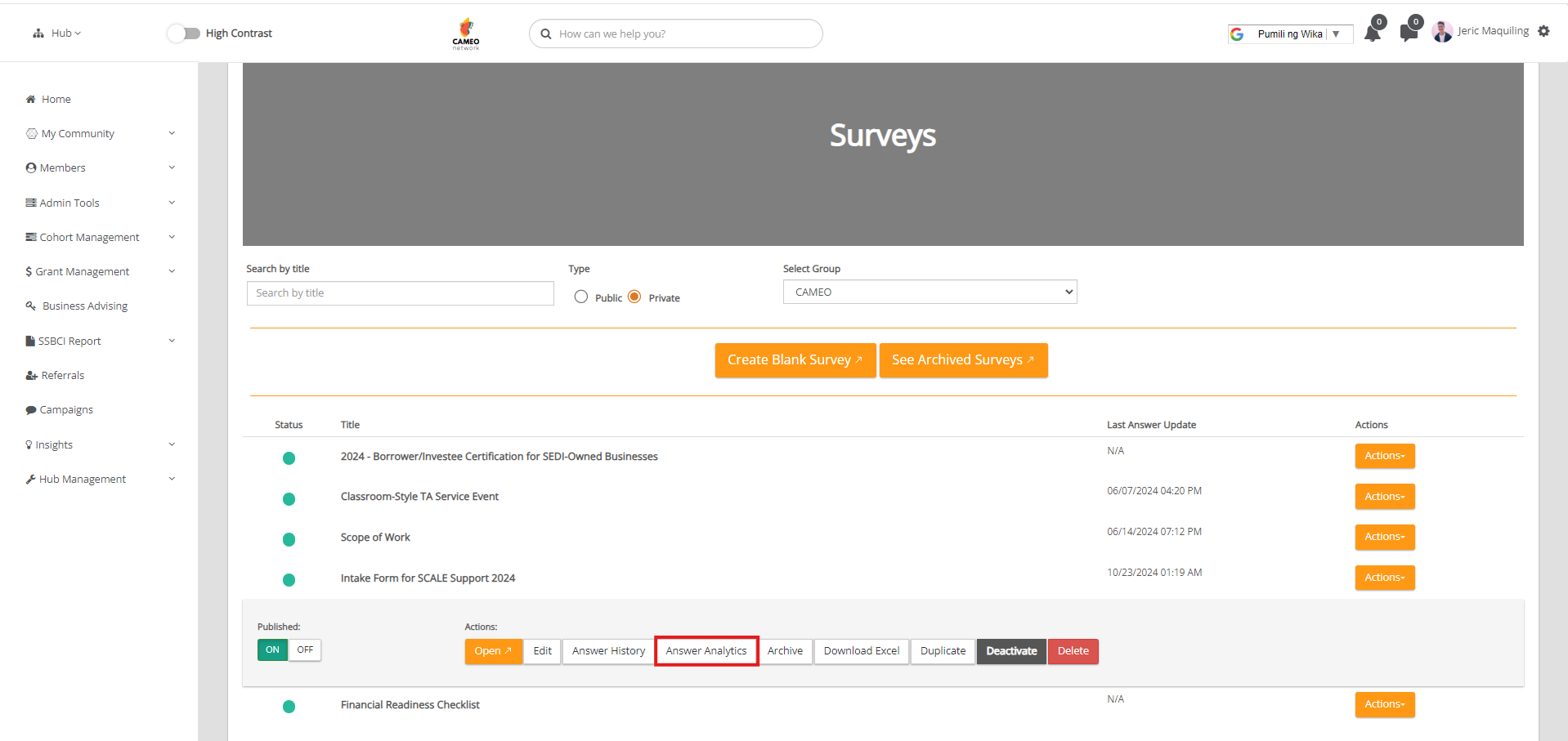
- #### **Archive**: Move completed or outdated surveys to the archived section, with the option to restore them later if needed.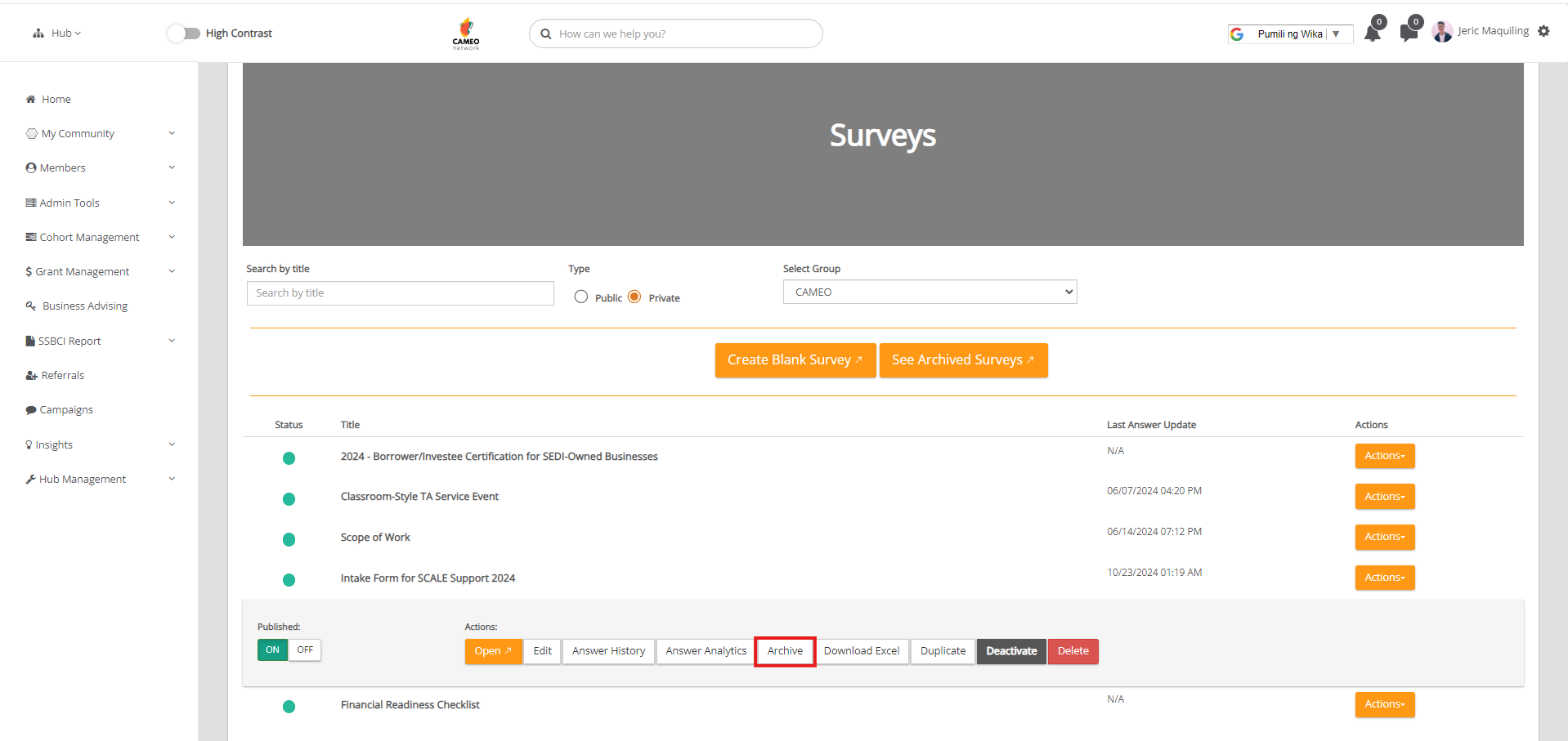
- #### **Download Excel**: Export all responses to a spreadsheet for further review.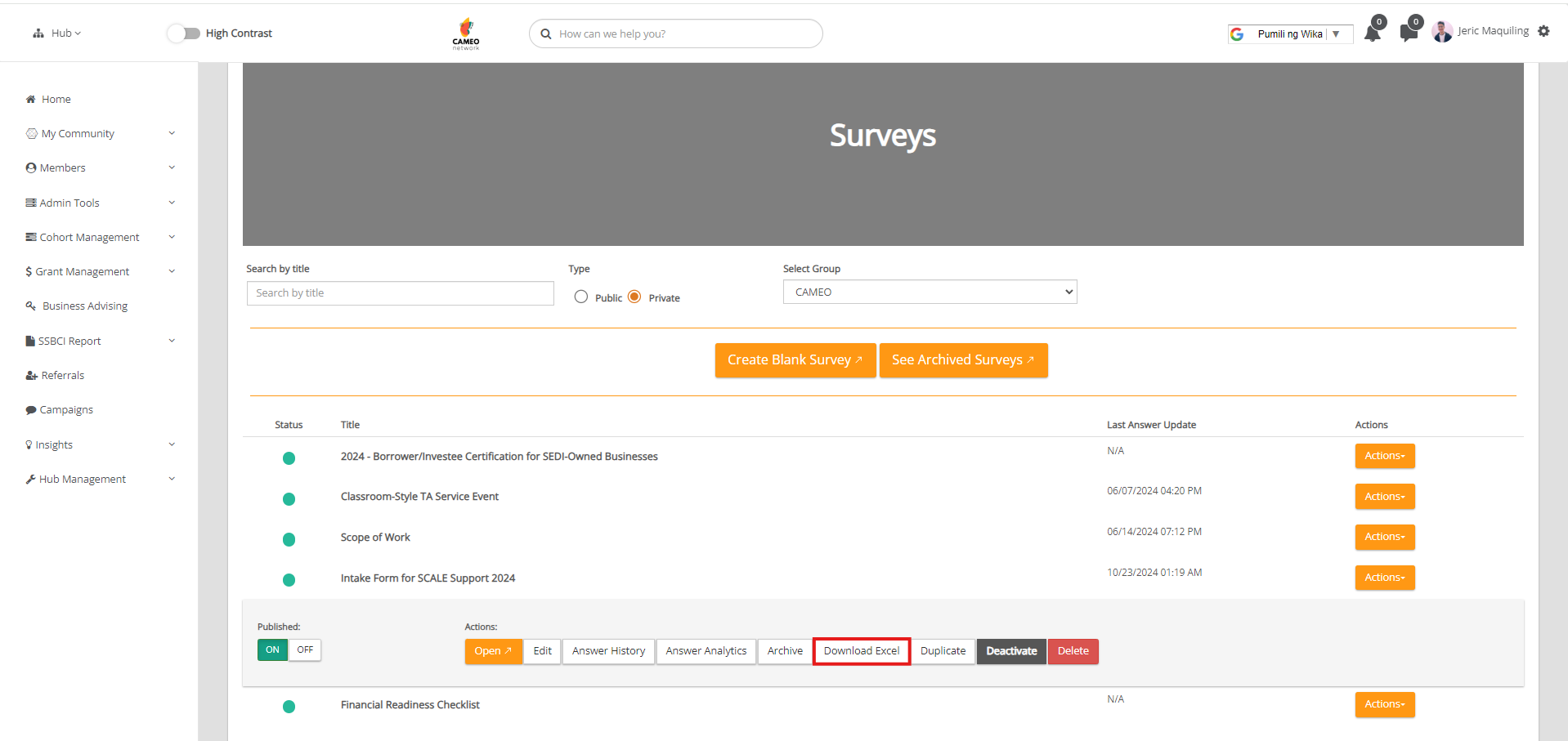
- #### **Duplicate**: Create a copy of the survey for reuse or editing.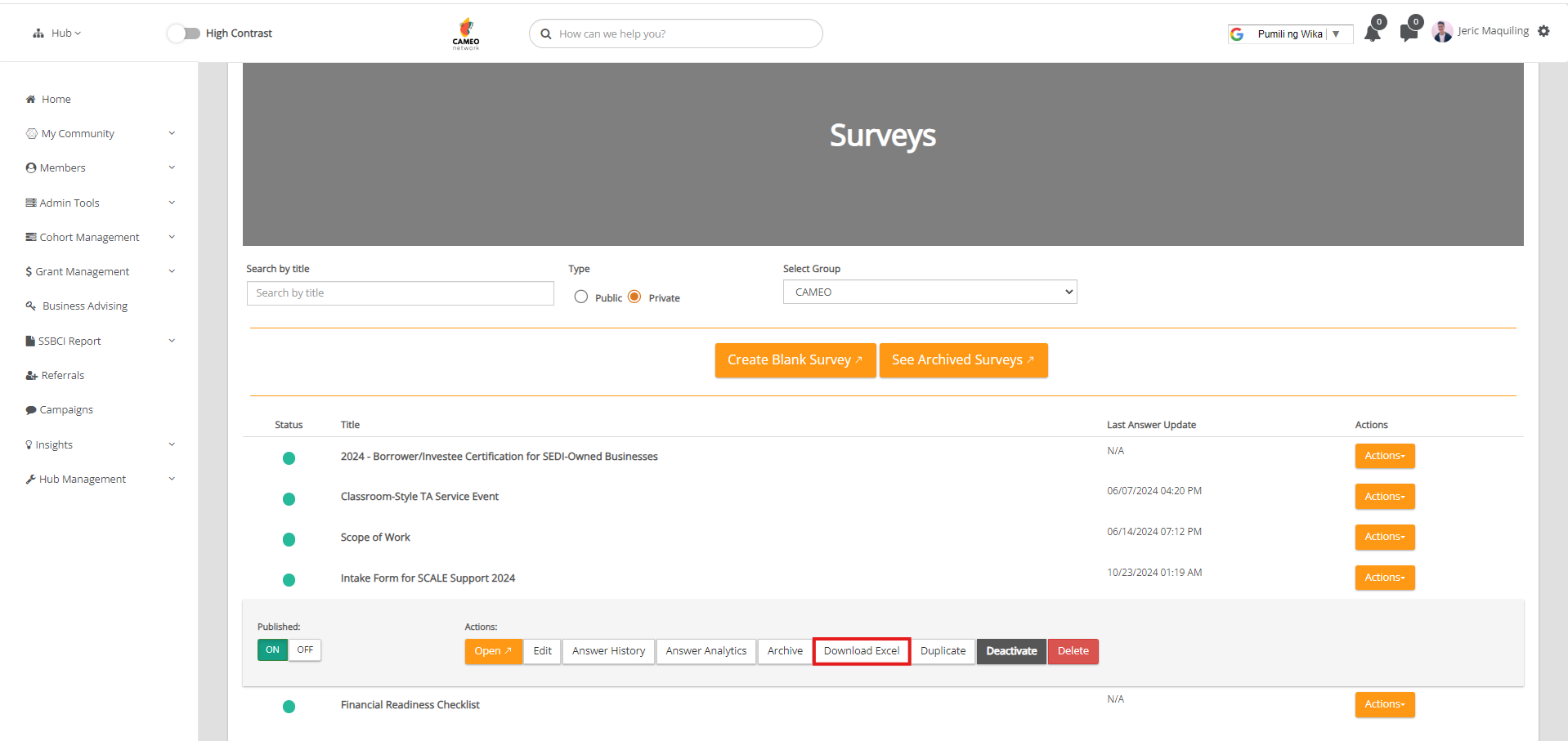
- #### **Deactivate**: This allows you to move the survey to the deactivated list.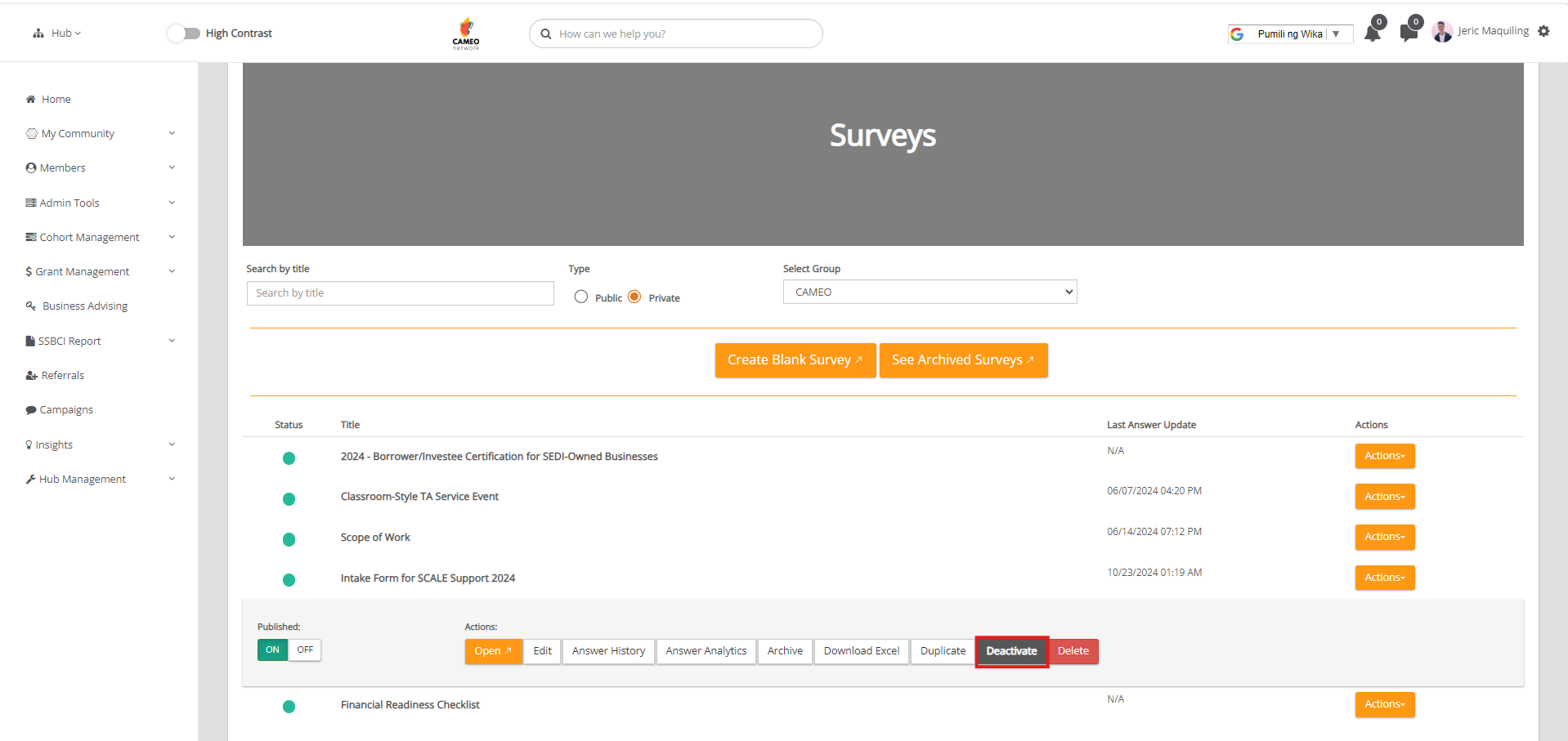
- #### **Delete**: Permanently delete a survey (**Note: this action is irreversible**).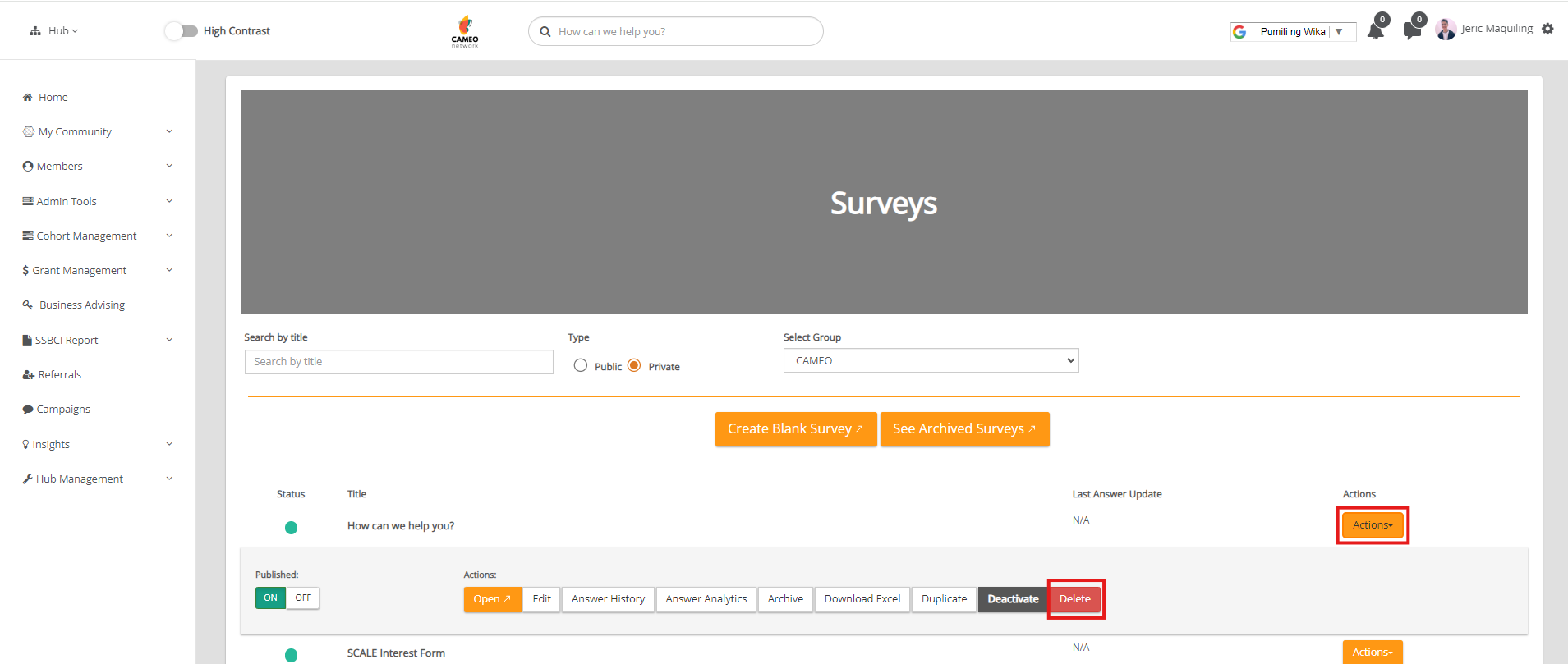
#### Watch the tutorial video here: **Reviewing Surveys as a Moderator**
- [FAQs](https://learn.economicimpactcatalyst.com/faqs?hsLang=en)
- [Getting started](https://learn.economicimpactcatalyst.com/getting-started?hsLang=en)
- [Troubleshooting](https://learn.economicimpactcatalyst.com/troubleshooting?hsLang=en#main-content)
- [Login and Registration](https://learn.economicimpactcatalyst.com/troubleshooting?hsLang=en#login-and-registration)
- [General](https://learn.economicimpactcatalyst.com/general?hsLang=en)
- [Account](https://learn.economicimpactcatalyst.com/account?hsLang=en)
- [Features](https://learn.economicimpactcatalyst.com/features?hsLang=en#main-content)
- [Business Advising](https://learn.economicimpactcatalyst.com/features?hsLang=en#business-advising)
- [Campaigns](https://learn.economicimpactcatalyst.com/features?hsLang=en#campaigns)
- [Cohort Management](https://learn.economicimpactcatalyst.com/features?hsLang=en#cohort-management)
- [Connect Now](https://learn.economicimpactcatalyst.com/features?hsLang=en#connect-now)
- [Courses](https://learn.economicimpactcatalyst.com/features?hsLang=en#courses)
- [Coworking](https://learn.economicimpactcatalyst.com/features?hsLang=en#coworking)
- [Jobs](https://learn.economicimpactcatalyst.com/features?hsLang=en#jobs)
- [Events](https://learn.economicimpactcatalyst.com/features?hsLang=en#events)
- [CalOSBA SCALE Resources](https://learn.economicimpactcatalyst.com/calosba-scale-resources?hsLang=en#main-content)
- [Data Reporting](https://learn.economicimpactcatalyst.com/calosba-scale-resources?hsLang=en#data-reporting)
- [Invoicing](https://learn.economicimpactcatalyst.com/calosba-scale-resources?hsLang=en#invoicing)
- [Forms](https://learn.economicimpactcatalyst.com/calosba-scale-resources?hsLang=en#forms)
- [Startup Space Quick Guide](https://learn.economicimpactcatalyst.com/calosba-scale-resources?hsLang=en#startup-space-quick-guide)
- [Lead Management Tool](https://learn.economicimpactcatalyst.com/calosba-scale-resources?hsLang=en#lead-management-tool)
- [Awardee - Lead Management Dashboard](https://learn.economicimpactcatalyst.com/calosba-scale-resources?hsLang=en#awardee-lead-management-dashboard)
- [TAP Application](https://learn.economicimpactcatalyst.com/calosba-scale-resources?hsLang=en#tap-application)
[%20(5).png?width=1875&height=625&name=Blog%20and%20Event%20Images%20(1200%20x%20600%20px)%20(5).png "EIC and Startup Space logos")](https://www.economicimpactcatalyst.com/)
28050 US Hwy 19 N Suite 305, Clearwater, FL 33761
[mailto:helpdesk@eicatalyst.com](mailto:helpdesk@eicatalyst.com)
Copyright © 2024, economicimpactcatalyst.com